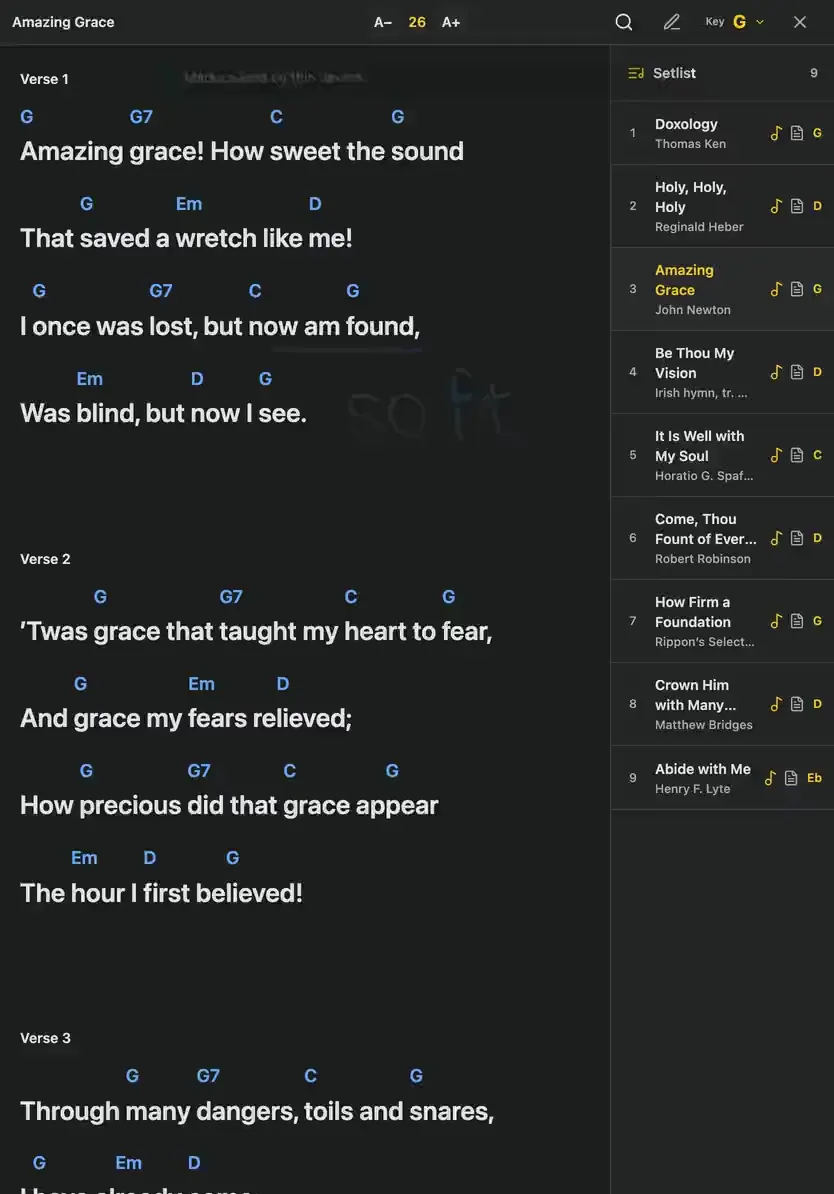
From the setlist at home to the music stand on Sunday, including the taps, holds and swipes that work in Live.
1 of 8: Setlist
Setlist
Drag songs into orderDrag a song by its handle to a new place. Undo appears just above as soon as you change something.
A key for every songEach song keeps its own key in this setlist. The song in the library stays as written.
Add from the librarySearch your song library and add songs to this setlist.
Ready without internetSave a setlist or your band’s library while you’re online. Check the copy’s expiry in Downloads. Playing together needs internet.
1
Drag a song by its handle to a new place. Undo appears just above as soon as you change something.
2
Each song keeps its own key in this setlist. The song in the library stays as written.
3
Search your song library and add songs to this setlist.
4
Save a setlist or your band’s library while you’re online. Check the copy’s expiry in Downloads. Playing together needs internet.
Live
Chords above the lyricsLarge and clear on the music stand, in the key of this setlist.
Text as big as you needA− and A+ change the text size for you, not for the rest of the band.
Swipe between songsSwipe right for the previous song and left for the next. You see its name before you let go.
The setlist alongsideThe current song is marked. Tap any song to open it.
Key and tempo at a glanceThe music bar shows the band key and tempo from the start. Choose Listen and WorshipAssist estimates the chord, key and tempo as you play; until then the microphone stays off.
1
Large and clear on the music stand, in the key of this setlist.
2
A− and A+ change the text size for you, not for the rest of the band.
3
Swipe right for the previous song and left for the next. You see its name before you let go.
4
The current song is marked. Tap any song to open it.
5
The music bar shows the band key and tempo from the start. Choose Listen and WorshipAssist estimates the chord, key and tempo as you play; until then the microphone stays off.
Live controls
One tap opens the controlsTap anywhere on the song. Return to song, or a tap outside, closes them again.
Lyrics, chords or bothSingers can hide the chords; players can show the chords only.
Music toolsChoose what the music bar shows, such as Listen, the key, the tempo and tools for practice. It sits at the reader’s edge, or in the setlist sidebar when there is room.
Your colours and fontSong appearance sets the background, lyric and chord colours, font and size, with a live preview. Set up a page-turner pedal or MIDI controller there too.
1
Tap anywhere on the song. Return to song, or a tap outside, closes them again.
2
Singers can hide the chords; players can show the chords only.
3
Choose what the music bar shows, such as Listen, the key, the tempo and tools for practice. It sits at the reader’s edge, or in the setlist sidebar when there is room.
4
Song appearance sets the background, lyric and chord colours, font and size, with a live preview. Set up a page-turner pedal or MIDI controller there too.
Hold, then drag
Hold, then dragHold the song for half a second and the setlist appears. Drag up or down; at the edge it keeps moving.
Let go to openThe highlighted song opens as soon as you lift your finger.
1
Hold the song for half a second and the setlist appears. Drag up or down; at the edge it keeps moving.
2
The highlighted song opens as soon as you lift your finger.
A–Z
A–Z on either edgeSlide a finger along the left or right edge to jump through your whole song library by letter. A large letter shows where you are.
Every song under that letterIf you can edit, a tap adds the song to the setlist and opens it; otherwise it just opens.
1
Slide a finger along the left or right edge to jump through your whole song library by letter. A large letter shows where you are.
2
If you can edit, a tap adds the song to the setlist and opens it; otherwise it just opens.
My chords
Tap Key in the music barKey and chords opens with the band key, the key Listen heard, and My chords.
Chords in your own keyTranspose only your screen, for example to play C shapes with a capo on 2 while the band plays in D.
The band is unaffectedThe band key, the saved song and everyone else’s screens stay the same. My chords resets when you leave Live.
1
Key and chords opens with the band key, the key Listen heard, and My chords.
2
Transpose only your screen, for example to play C shapes with a capo on 2 while the band plays in D.
3
The band key, the saved song and everyone else’s screens stay the same. My chords resets when you leave Live.
Notes
Open Marks & notesThe pen icon above the song opens the tools: the pen, the eraser and a typed note.
Write on the songUse an Apple Pencil, another stylus or your finger. While you write with a stylus, a resting palm leaves no marks.
Add, edit or move a noteChoose Note and tap the song where you want it. Tap your note to edit it, or hold it briefly and drag it to another line.
Undo, redo, doneUndo and Redo step back and forward through your marks. Done closes the tools; marks stay on their words and are private by default.
1
The pen icon above the song opens the tools: the pen, the eraser and a typed note.
2
Use an Apple Pencil, another stylus or your finger. While you write with a stylus, a resting palm leaves no marks.
3
Choose Note and tap the song where you want it. Tap your note to edit it, or hold it briefly and drag it to another line.
4
Undo and Redo step back and forward through your marks. Done closes the tools; marks stay on their words and are private by default.
Play together
Follow the band leaderWhen Sam changes song, your screen follows. Switch it off to look ahead; a note then offers Jump to song or Resume following.
Suggest a songSuggest the song you have open. The band leader accepts or declines it.
Alone or with the bandSwitch between Practice on my own and following the band, or join another live session.
1
When Sam changes song, your screen follows. Switch it off to look ahead; a note then offers Jump to song or Resume following.
2
Suggest the song you have open. The band leader accepts or declines it.
3
Switch between Practice on my own and following the band, or join another live session.
More attention for the music and each other.
Scan your song sheets
Use a photo or PDF to make an editable song. Review the lyrics and chords before adding it to your band’s library.
Your setlists, ready to play
Prepare song order and keys with your team. Open the setlist for practice or lead a shared session without Presenter.
Guests in seconds
Invite your musicians to the workspace, or share a temporary session QR with authorised guests. No per-musician subscription.
Your screen, your style
Adjust fonts, sizes and colours for lyrics and chords. Choose your own chord shapes while the band stays in the same key.
1 · Find songs together
From song sheet to editable chart.
Photograph a printed sheet or open a PDF. Select the song on the page and add any continuation pages. Song-sheet recognition (OCR) reads the lyrics, chords and song sections into a draft you can check and edit.
Import and review a ChordPro file, or write or paste lyrics and add chords inline
Let editors check and save songs in your shared library
Share one setlist with the band. Set the song order and save a key for each entry, even when a song appears twice. Each musician can open it and practise at their own pace.
Show lyrics, chords or both, with two columns on larger screens
Set fonts, sizes and colours for lyrics and chords separately
Adjust the practice tempo on your own device
Download a setlist or your band’s library while you’re online. Check Downloads before you leave.
WorshipAssist · Lyrics and chords
Optional · Listening and practice
Check the chord, key and tempo as you play.
The listening tools from Chord Assist are now in WorshipAssist. Turn on the microphone to compare its estimates of the chord, key and tempo with the song. If a suggested key sounds right, transpose the chords on your own screen.
Play along with a pad in your practice key or drums at your practice tempo, even without the microphone
Read chords as letters or Nashville numbers
Keep the controls floating, dock them at the top or bottom, or place them in the tablet’s open setlist
Enable only the tools you want. Listening runs on your device; recording starts when you choose Record.
Recordings
Record a take and work on the hard part.
Save a practice take on your device. Listen again at a slower pace, or choose a start and end to repeat a passage with A–B looping. Share the takes you choose with signed-in members of your band.
Keep recordings beside the song and export a copy when you need it
Create a draft chord chart on your device, then check the chords and make corrections
Optionally create an editable chord chart automatically when you stop recording. Review it before saving; only editors can add it to the shared library
A compatible release after WorshipAssist 1.2.27 will add offline setlist editing, personal recording and chord charts from your own takes to Free. Each band has 1 GB for shared recordings. With Ultimate, recordings use the church’s shared 50 GB. Recordings stored only on your device use no cloud space.
3 · Rehearse together
Start on the same song.
Choose Play with the band and join a shared session. The leader chooses the song and band key; each musician keeps the view that suits their instrument.
Lead a shared session from WorshipAssist
Look ahead on your own screen, then resume following
Invite a guest with a temporary link or QR code
Amazing GraceBand key A Verse 1AAmazing A7grace how Dsweet the AsoundThat Asaved a wretch like EmeVerse 2’Twas Agrace that A7taught my Dheart to AfearAnd Agrace my fears reElieved
Suzan · bandleader
Following SuzanAmazing GraceBand key AMy chords GGAmazing G7grace how Csweet the GsoundThat Gsaved a wretch like DmeG shapes · capo 2
Sam · guitar
Following SuzanAmazing GraceBand key AAmazing grace how sweet the soundThat saved a wretch like meLyrics
Alexia · vocals
4 · Perform live
The next song, already in everyone’s hands.
Open Live for a full-screen music stand. When the leader chooses the next song, the band follows. With My chords, a guitarist can read the shapes for a capo while everyone plays in the band’s key.
Tap for controls, swipe between songs, or hold and drag to open the setlist
Drag along either edge to browse from A to Z, or search the full library by title
Turn pages and change songs with a Bluetooth page-turner pedal, or a MIDI pedal or controller
Keep your screen awake while reading in supported browsers
Come Thou FountBand key D Verse 1Come, Thou DFount of Gevery DblessingDTune my Aheart to Dsing Thy graceLive song
Suzan · bandleader
Following SuzanCome Thou FountBand key DCome, Thou DFount of Gevery DblessingDTune my Aheart to Dsing Thy graceLyrics + chords
Sam · guitar
Following SuzanCome Thou FountBand key DCome, Thou Fount of every blessingTune my heart to sing Thy graceLyrics
Alexia · vocals
Write on your songs
Mark up a song like paper.
Write on a song with an Apple Pencil, another stylus or your finger. Pick the pen, the highlighter, the eraser or a typed note, and undo or redo as you go. While you write with a stylus, a resting palm leaves no marks.
Marks stay on their words when you change the text size or turn the tablet
Tap your typed notes to edit them, or hold and drag them to another line. Undo a move with one tap
Signed in, your marks follow you to your other devices
Private by default: nobody else sees them, and Show my marks hides them on your own screen
Your marks never change the song, the setlist or the key.
New in 2.0 · Optional
Share your marks with the band.
From 2.0, a musician can share their marks on one song or on a whole setlist with bandmates in the same live session. Nothing is shared until you switch it on.
Bandmates in the session can switch your marks on as a read-only layer next to their own
Your layer has its own colour, and your notes carry your first name
You can stop sharing at any time
Sharing needs you to be signed in. Guests and Presenter’s room view never share or see shared marks.
Optional · with paid Presenter
Suggest the next song to Presenter.
Playing at another church? Scan the WorshipAssist QR in Presenter to send the songs or setlist you have permission to share, with lyrics and chords. The operator reviews the suggestion and chooses a section. An accepted setlist is added without starting the presentation.
Send from your own workspace, including as a visiting band
Use the same network, or mobile data when the receiving Presenter has Anywhere enabled
Save accepted songs in the receiving library and reuse connected setlists
Search…Ctrl KStop
Welcome
WelcomeCanva+ Drop here
Worship
Amazing GraceJohn NewtonHow Great Thou ArtStuart K. Hine+ Drop here
Speaker
Sermon.pptx18 slides+ Drop here
Live viewAmazing grace how sweet the soundThat saved a wretch like meI once was lost but now I’m foundWas blind but now I seeControlsSuggestions1WorshipAssist suggests Come Thou FountRobert RobinsonDeclineAccept & present
Create deck from eventSunday GatheringSun 11 Oct · 10:00Auto-deck section order1Welcome1 item2Worship2 songs3Speaker1 itemCreate & open auto-deck
WorshipAssist Free vs WorshipAssist Premium
Practise and play your own songs without an account. In the new offer, local music tools and joining Presenter on church Wi-Fi are Free. WorshipAssist Premium adds a shared library, sync and online band sessions.
Use the Free personal workspace in your browser today. A signed-out musician QR from Presenter needs the 2.1 desktop release. Free in-reader YouTube needs a compatible reader and the active service; you can still open the song in YouTube. A compatible release after WorshipAssist 1.2.27 will add offline setlist editing, personal recording and chord charts from your own takes to Free.
WorshipAssist Free
WorshipAssist Premium
Your own songs, chords and setlists
Own songs now. Offline setlist editing in the next reader.
Included
Live reader with key, transpose and text size
Included
Included
Pad, drums, grooves and tuner
Included
Included
Local AI that hears chords, key and tempo
Included
Included
Account
Not needed
Needed for sync and sharing
Works offline
On this device after setup
For 30 days after each online check-in
Sync between your devices
Not included
Included
Share setlists with your band
Not included
Included
Your church’s songs
Not included
Included
Band sessions that follow the leader’s page
Not included
Included
Send songs to a Presenter
Not included
Included
Lead sheets from recordings
Personal takes in the next reader
Included
WorshipAssist Premium is billed monthly or yearly; yearly billing gives you 2 months free.
Without an online check-in for 30 days, WorshipAssist Premium continues as WorshipAssist Free. Your own songs stay.
While you’re online, open your songs in the browser and try the tools you plan to use offline. Keep WorshipAssist’s site data in the same browser on the same device.
WorshipAssist is included in Connect and Ultimate.
Older versions and receipts may call this subscription WorshipAssist Flex.
WorshipAssist Free costs nothing and needs no account. WorshipAssist Premium, for sync and sharing with your band, costs €9 a month. Invited musicians join free. WorshipAssist is included with Connect and Ultimate.
From the screen in the room
Scan Presenter’s QR and follow the service live. The QR works on the church Wi-Fi with paid Presenter or its full 28-day trial. For mobile data or another network, choose Anywhere with Presenter Premium, Presenter Own during its update year, or Ultimate.
From your band’s library
Your own songs, setlists, home practice and band sessions on every musician’s device. One WorshipAssist subscription per band, or included with Connect and Ultimate.
From your church’s planning
Setlists planned in Connect arrive in WorshipAssist, ready to practise or play together. Included with Connect and Ultimate.
WorshipAssist Free costs €0. Save your own song on this device, change the key and play along with a pad without an account. WorshipAssist Premium syncs songs and shares setlists for one band. Paid Connect and Ultimate include it. Invited musicians join free.
Do we need a running Presenter?
No. WorshipAssist works on its own over the internet: library, setlists and band sessions. Keep the presentation software you use now. Only the in-room QR view needs a running Presenter. Presenter 2.0.1 includes that view with a paid licence or its full trial. The account-free musician QR on church Wi-Fi requires Presenter 2.1.
If I fix a chord, does everyone see it?
Online readers see saved corrections; refresh downloaded practice copies to get them. Presenter keeps its own library, separate from a standalone band. With Ultimate, bring your church’s songs and setlists into Presenter and refresh them when needed. Changes do not rewrite a service you have already imported.
Can a guest musician join without an account?
Yes. Share the session’s guest QR code or link. It is valid for 24 hours, and the leader can renew it. Guests choose their own view and key, but can’t edit the library or control the projector. The band session ends when the leader ends it, or after 12 hours without activity from the leader, and never lasts longer than 24 hours; guest access ends with it.
The band plays in A, but I know the song in G shapes. Can I use a capo?
Yes. My chords transposes only the chords on your own screen, for example two semitones down to G. Put a capo on the second fret and you sound in A with the band. The saved song, the setlist and the band’s key stay unchanged.
Can other musicians see what I write on a song?
Not unless you share. Marks are private by default and never change the song, the setlist or the key. With 2.0 you can share your marks on one song or on a whole setlist with the bandmates in your live session. They switch your marks on as a read-only layer, and you can stop sharing at any time.
Do musicians need to install an app?
Open WorshipAssist in your phone, tablet or computer browser. A Bluetooth page-turner pedal works in any browser. MIDI pedals and controllers work in Chrome, Edge and Firefox on a computer and in Chrome on Android; Safari and the browsers on iPhone and iPad have no MIDI.
Can I add songs from photos and PDFs?
Yes. In Songs, choose Add song, then Import photo or PDF. Select the song area, add any continuation pages and check the editable draft against your sheet before saving. Import is included with WorshipAssist, Connect and Ultimate, and during an eligible music trial.
Can I practise without internet?
Yes. WorshipAssist Free keeps your own songs on this device. In a browser, open WorshipAssist once online and try the practice tools you plan to use. With WorshipAssist Premium, Connect or Ultimate, open play.sundayassist.com while you’re online. Download the setlist from its menu or save your band’s library in Downloads. On that device, the copies are readable for up to 30 days after the last successful online access check, or less if access ends sooner. When you sign out, choose to keep the copies on this device until they expire or remove them immediately. Playing together in an online band session needs internet.
Can I turn a recording into a chord chart?
Yes. Choose Create chord chart on a recorded take. On-device analysis accepts recordings up to 15 minutes and 250 MiB. Review and correct the draft before saving or exporting it. Sharing a recording with the band is a separate choice. A compatible release after WorshipAssist 1.2.27 will add offline setlist editing, personal recording and chord charts from your own takes to Free.
Try it at your next rehearsal.
Bring three songs, invite your musicians and share your first setlist. From home practice to playing live, your band has one place to get ready.