Presenter Free 2.1 will let you bring the speaker’s PDF or PowerPoint and use every locally connected screen.
Real interface · Example content
Ready for English-speaking churches
KJV, ASV and WEB offlineDownload them once, then present without internet. Import more translations as USFM or USX. With Smart Bible paste, turn numbered verses you copy from Bible.com into editable slides in Presenter, without retyping.Bibles in Presenter
Bible suggestions in six languagesWith a supported language set up, the optional local AI Assistant suggests Bible passages from a spoken reference or quotation. Review the passage in your own Bible before showing it. Choose Auto-follow, and the AI Assistant then puts each next verse of the passage on screen as it is read aloud.More about the AI Assistant
CCLI SongSelect importImport songs from SongSelect and see how often each was used for your CCLI report.How the import works
Switch without retypingBring your songs from ProPresenter, EasyWorship, OpenLP or SongBeamer.What you can import
A closer look
See how to prepare the service, add Bible passages and songs, style slides and control the screens. The Slide Builder screen previews Presenter 2.1.
1 of 8: Prepare
Prepare
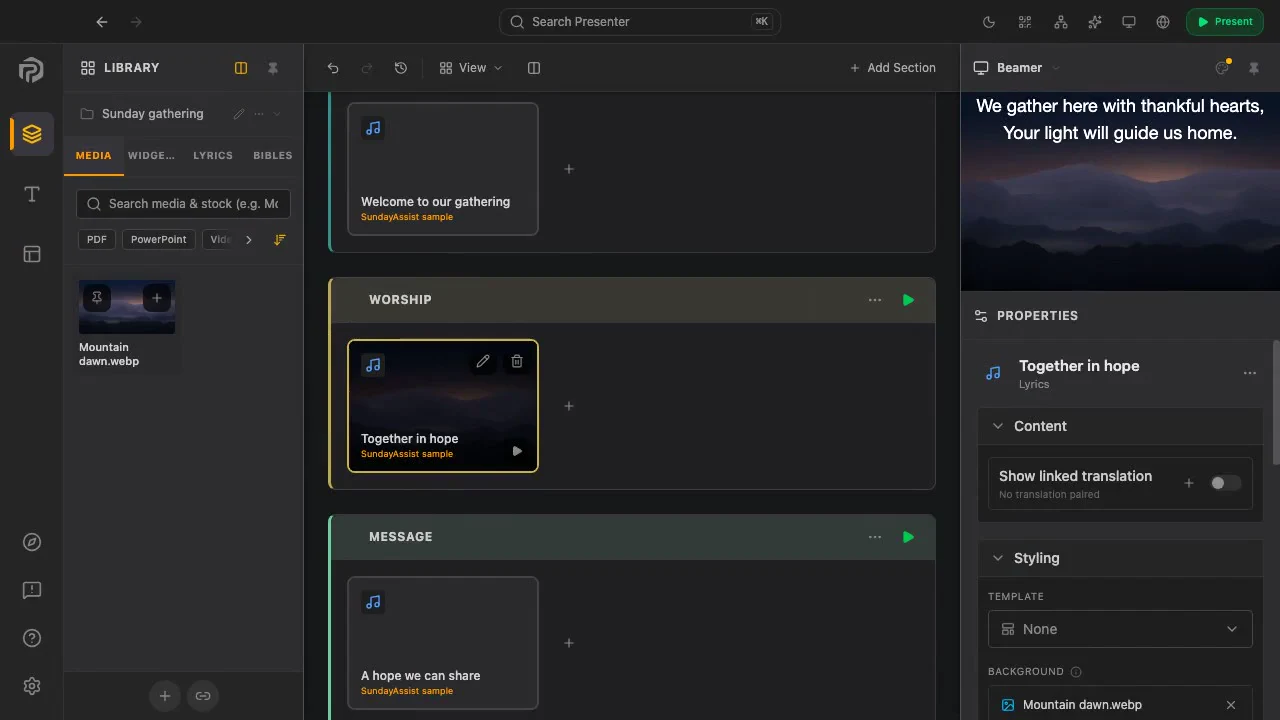
Everything in one librarySongs, Bible passages, media and widgets. Drag what you need into the running order, or click +.
The service, section by sectionEach section has its own color. Drag cues to change the order, and press Present when the service starts.
Check it before SundayThe selected song as the screen will show it, with its settings and every stanza.
1
Songs, Bible passages, media and widgets. Drag what you need into the running order, or click +.
2
Each section has its own color. Drag cues to change the order, and press Present when the service starts.
3
The selected song as the screen will show it, with its settings and every stanza.
Bibles
Look up any passageType a reference the way you write it, or search your free downloaded Bibles by a few words or, with the AI Assistant’s models, by a description. Choose a translation, then drag the result into a section, or click +.
Part of the serviceThe passage sits in its section like any other cue, with the reference in your language.
Numbered verses, in your styleEach slide shows its verses with their numbers, over your church's background.
Translation and verses per slideChange the translation for this cue and show one to five verses per slide. Downloaded or imported USFM and USX Bibles work offline.
1
Type a reference the way you write it, or search your free downloaded Bibles by a few words or, with the AI Assistant’s models, by a description. Choose a translation, then drag the result into a section, or click +.
2
The passage sits in its section like any other cue, with the reference in your language.
3
Each slide shows its verses with their numbers, over your church's background.
4
Change the translation for this cue and show one to five verses per slide. Downloaded or imported USFM and USX Bibles work offline.
Lyrics editor
Your song librarySearch your own songs or CCLI SongSelect in one place.
Just type the textPlain text with section labels. Add chords or put the song in the deck from the toolbar.
Stanzas appear as you typeEvery section becomes a slide, ready to present.
Preview in your styleSee it exactly as the screen will show it, with your church's fonts and background.
1
Search your own songs or CCLI SongSelect in one place.
2
Plain text with section labels. Add chords or put the song in the deck from the toolbar.
3
Every section becomes a slide, ready to present.
4
See it exactly as the screen will show it, with your church's fonts and background.
Import
From the software you use todayProPresenter, EasyWorship, OpenLP, SongBeamer, ChordPro, CSV and text files.
No duplicatesSongs you already have are recognised, so you choose what happens to each.
1
ProPresenter, EasyWorship, OpenLP, SongBeamer, ChordPro, CSV and text files.
2
Songs you already have are recognised, so you choose what happens to each.
Slide Builder (2.1)
Your slides, ready to reuseEvery slide of the presentation, with templates and your media in tabs beside it.
Text, shapes, tables and mediaAdd a heading, a shape with its own text, a table, a picture or a video. Every tool also has a keyboard letter.
Edit right on the slideDrag, resize and rotate. Text in shapes and tables stays editable.
Transitions that also play liveNew slides fade in. Choose Push, Wipe or Cover for the whole presentation or for one slide.
Into the service, or out as PowerPointAdd the slides to the running order, or export an editable PowerPoint file. Adding them to the service is part of paid Presenter and the trial.
1
Every slide of the presentation, with templates and your media in tabs beside it.
2
Add a heading, a shape with its own text, a table, a picture or a video. Every tool also has a keyboard letter.
3
Drag, resize and rotate. Text in shapes and tables stays editable.
4
New slides fade in. Choose Push, Wipe or Cover for the whole presentation or for one slide.
5
Add the slides to the running order, or export an editable PowerPoint file. Adding them to the service is part of paid Presenter and the trial.
Styling
One style per display profileThese are the defaults for every cue on the Beamer profile. Each display profile keeps its own style.
Every layer in one placeText, translation, copyright and Bible text, plus background, logo, live message and transitions.
Your own backgroundChoose none, a color, an image or video, or a live camera, then set the overlay and blur.
Watch it change liveEvery change shows straight away in Live View and is saved automatically.
1
These are the defaults for every cue on the Beamer profile. Each display profile keeps its own style.
2
Text, translation, copyright and Bible text, plus background, logo, live message and transitions.
3
Choose none, a color, an image or video, or a live camera, then set the overlay and blur.
4
Every change shows straight away in Live View and is saved automatically.
Live
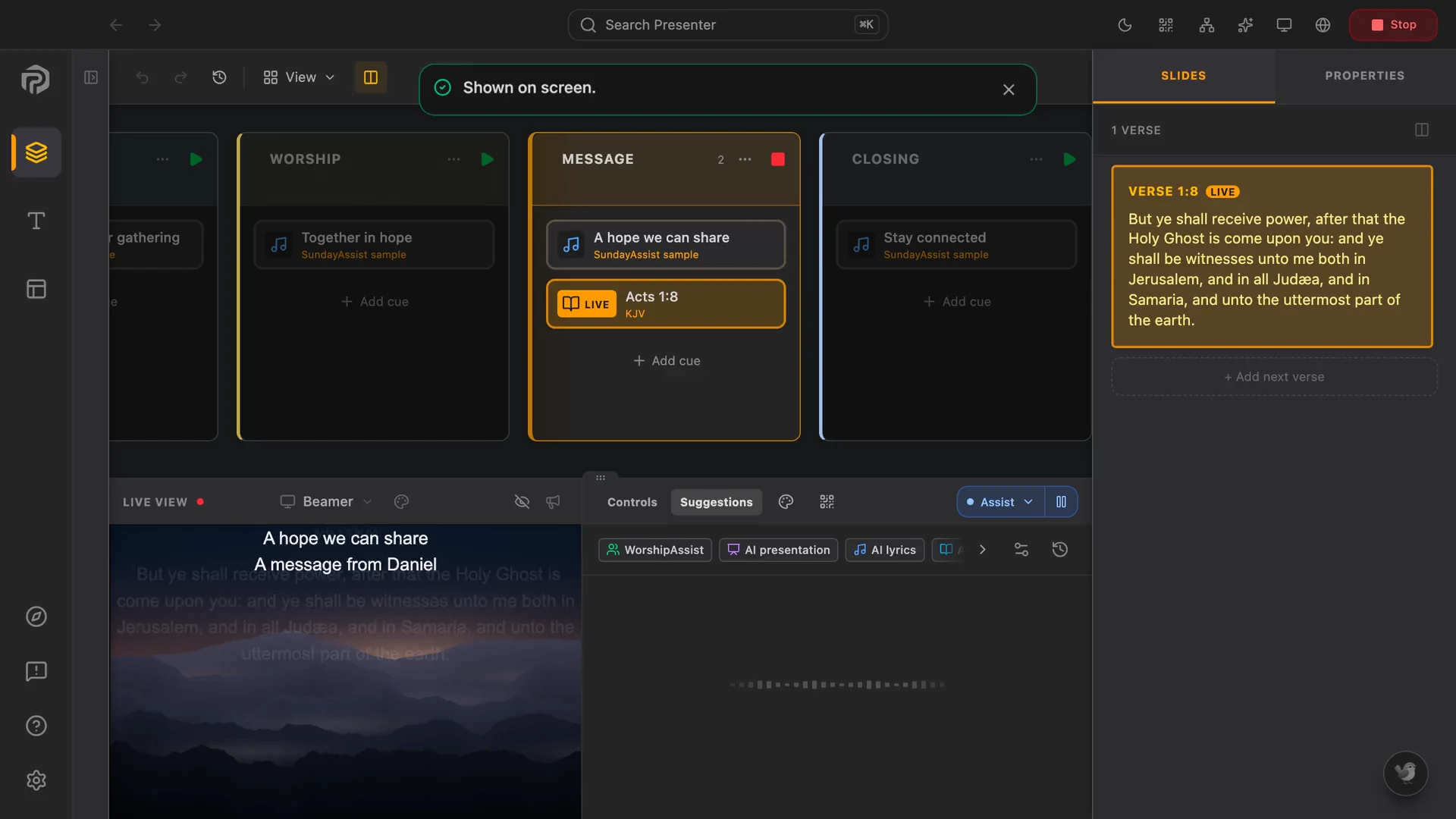
Follow the service liveThe live song is marked in its section. Double-click any cue to show it, or start a section with its play button.
Slides make themselvesA song becomes its stanzas, a passage its verses. You edit text, never layout.
Suggestions wait for youThe AI Assistant heard John 3:16; the band can suggest songs too. One click shows it, or turn on automatic following.
What the room seesLive View shows each screen as it is. Pick a screen and adjust its style from the same bar.
1
The live song is marked in its section. Double-click any cue to show it, or start a section with its play button.
2
A song becomes its stanzas, a passage its verses. You edit text, never layout.
3
The AI Assistant heard John 3:16; the band can suggest songs too. One click shows it, or turn on automatic following.
4
Live View shows each screen as it is. Pick a screen and adjust its style from the same bar.
Screens
Each screen its own jobGive the projector the Beamer profile and the monitor at the front a stage profile. Choose where the sound plays.
Next cue or next slideJump to the next cue, or step through the stanzas, verses or pages of the current one. Each has a shortcut.
Blank or default slideB blanks the screen, D shows your default slide, and Advance moves the service forward.
1
Give the projector the Beamer profile and the monitor at the front a stage profile. Choose where the sound plays.
2
Jump to the next cue, or step through the stanzas, verses or pages of the current one. Each has a shortcut.
3
B blanks the screen, D shows your default slide, and Advance moves the service forward.
One clear plan at the desk.
Slides from your content
Add a song or Bible passage as one cue. Presenter turns its text into slides, so you don’t have to design each one by hand.
Room for a change
Drag songs, passages, slides and media in, even while you present.
Ready without internet
Prepared content presents offline. Presenter blocks in-app updates while presenting.
Bring the web and your presentations into the service.
Keep the content you already use in one running order, with controls that belong in Presenter.
Presenter | Prepare, preview and present your church serviceSundayAssist
Add a YouTube video to the service. Play, pause and seek from Presenter, alongside the rest of your running order.
Presenter | Prepare, preview and present your church serviceSundayAssist
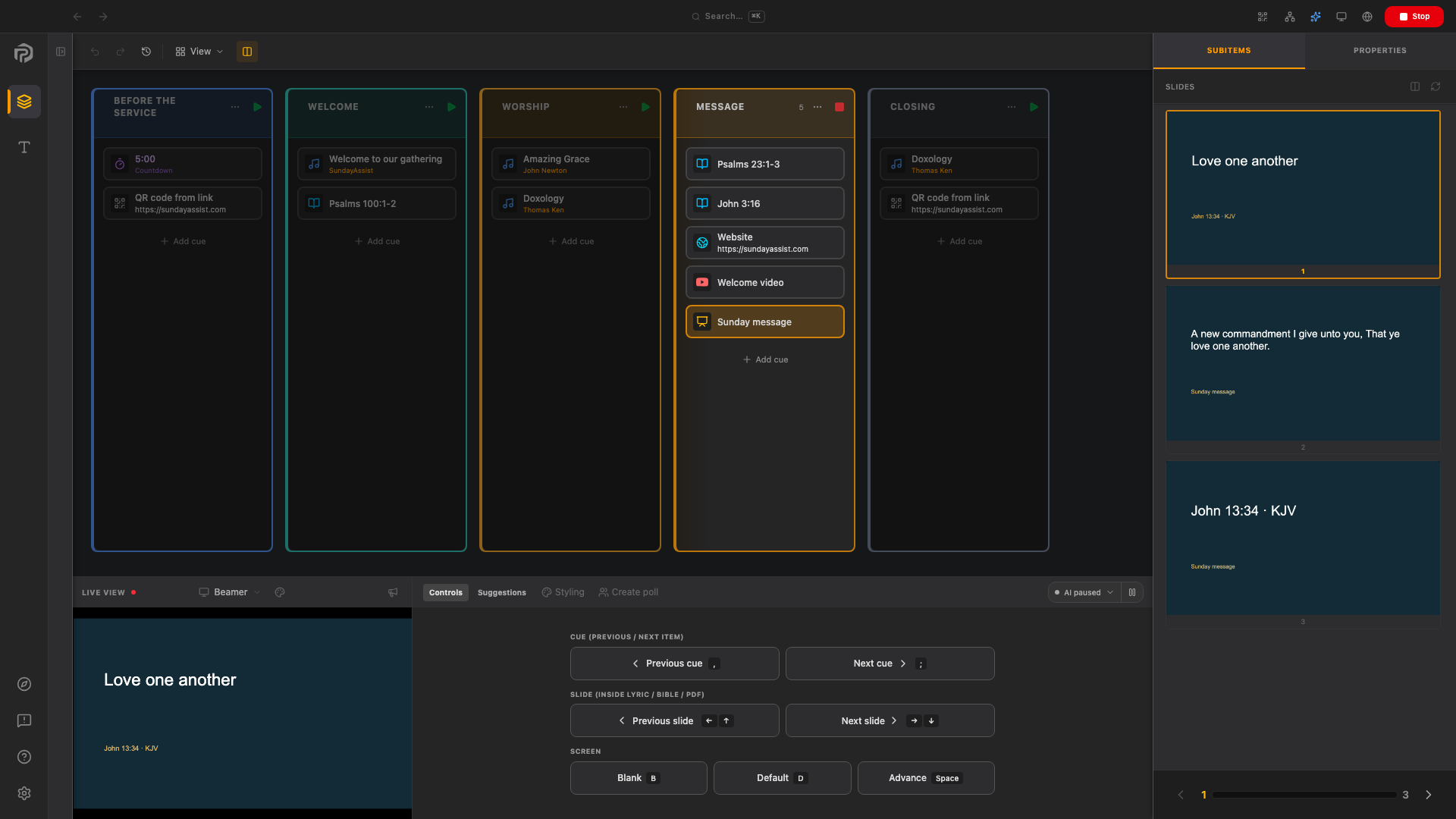
Play .pptx presentations directly without Microsoft Office, with supported click animations and embedded videos. Move through slides and animation steps from Presenter.
Presenter · PowerPoint presentationActual interface · sample data
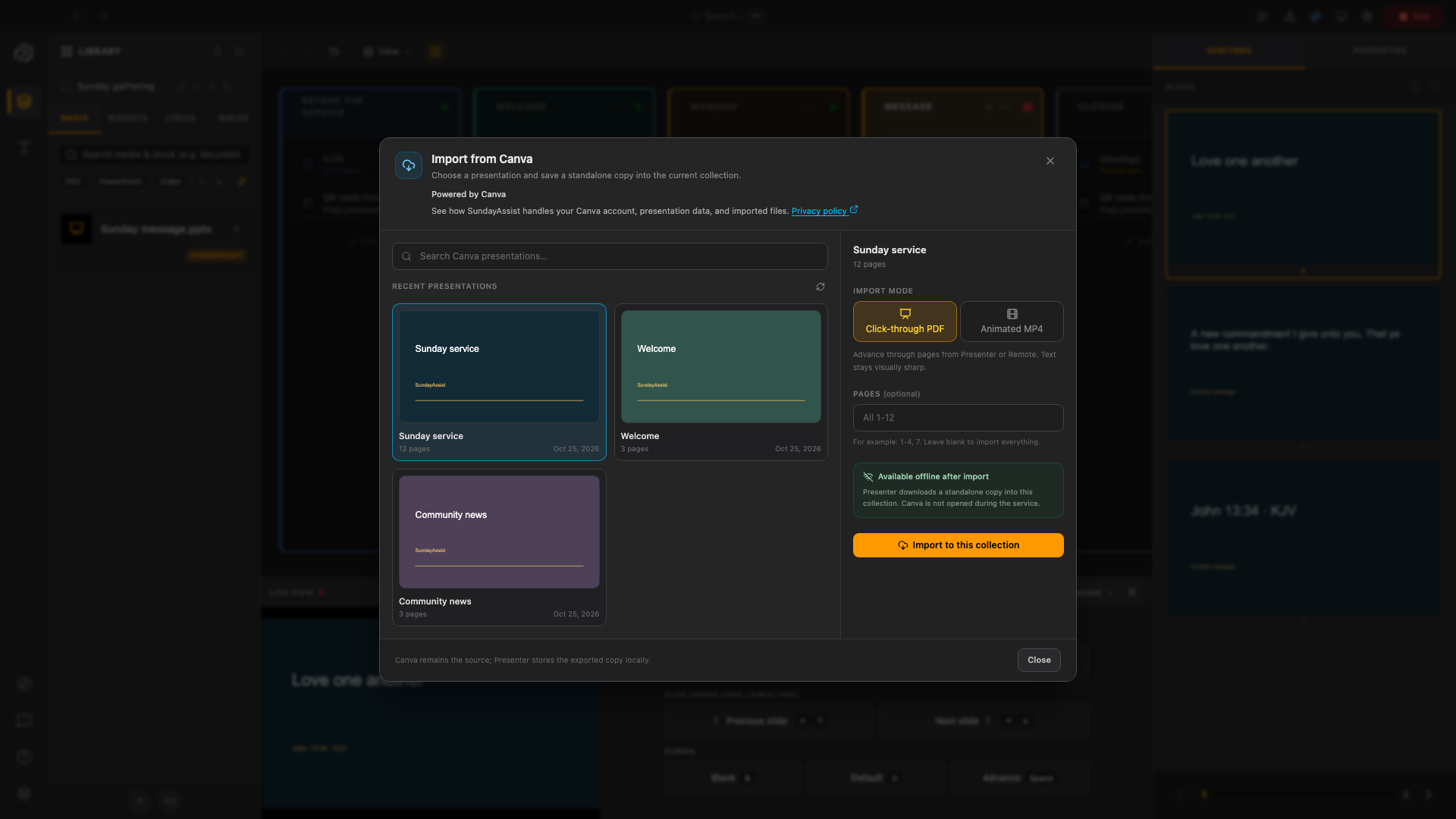
Choose a design from your connected Canva account. Import click-through PDF slides or an animated MP4, ready to present from the local copy offline.
Presenter · Import from CanvaActual interface · sample data
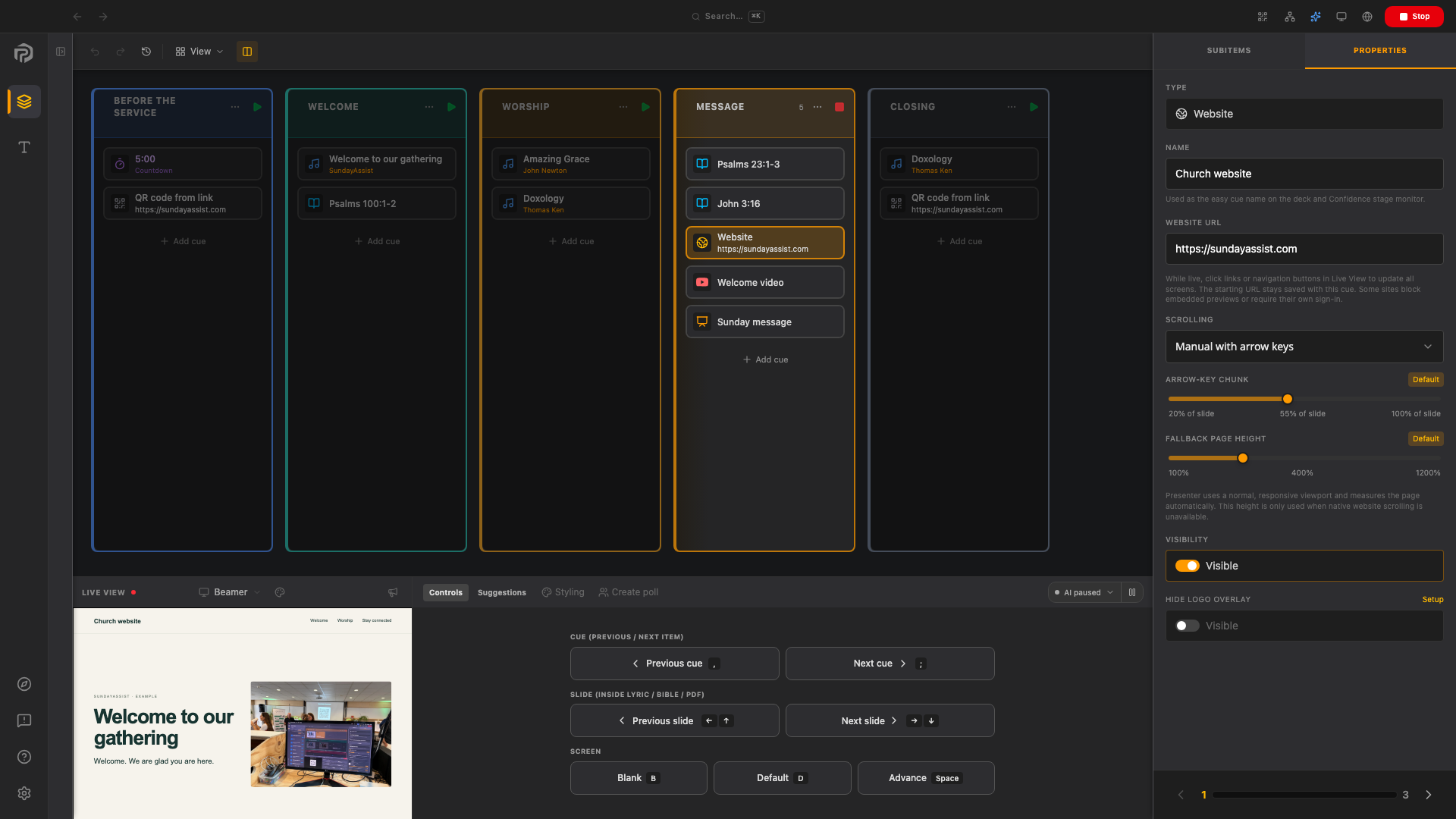
Open a live website in Presenter. Follow links and scroll from Live View while presentation screens follow your page navigation.
Presenter · Website navigationActual interface · sample data
Websites and YouTube need internet. Prepare and review media before the service.
What to check before presenting
Websites must allow embedding. The screens follow page navigation and scrolling; website logins, forms and other live page changes do not synchronise between screens.
YouTube requires a SundayAssist account signed in inside Presenter and an eligible licence or active YouTube trial. Rehearse the actual video online before the service.
PowerPoint playback supports .pptx files. Some effects, fonts and media can differ from Microsoft PowerPoint; rehearse on your equipment. Older .ppt files use PDF conversion, which produces static pages.
Connecting Canva, exporting and downloading require internet. A completed PDF or MP4 import plays locally offline. Later edits in Canva require a new import.
NDI requires a supported Presenter build, an available runtime and compatible network equipment or software. It is unavailable on Windows ARM64. NDI input carries video only; output audio supports local media, not web embeds or incoming sources.
MIDI needs a compatible input or output port recognised by your operating system. MIDI Learn maps incoming notes or control changes; outgoing rules send notes or control changes for configured presentation events.
Custom MQTT credentials require a paid Presenter licence locally. Cloud access requires Ultimate and organisation owner or administrator rights. State, viewing and control permissions are separate choices; Presenter must be running; cloud state, viewing and controls also require its phone connection set to Anywhere.
Optional and offline: Presenter recognises Bible passages, follows the song and turns PowerPoint and PDF slides on spoken commands. Every suggestion waits for your click, unless you choose Auto-follow.
Spoken Bible references in six languages and suggestions for paraphrased quotations
Amazing GraceJohn NewtonHow Great Thou ArtStuart K. Hine+ Drop here
Speaker
Sermon.pptx18 slides+ Drop here
Live viewAmazing grace how sweet the soundThat saved a wretch like meI once was lost but now I’m foundWas blind but now I seeControlsSuggestions1Psalm 23:1King James VersionShow on screen
Create deck from eventSunday GatheringSun 11 Oct · 10:00Auto-deck section order1Welcome1 item2Worship2 songs3Speaker1 itemCreate & open auto-deck
Help right where you work
Preview for Presenter 2.1. These tools guide you through tasks as you prepare and check the service with you before it starts.
Show me, step by step
Presenter leads you through a whole task one control at a time, such as adding a Bible passage. You make every change yourself.
Your first Sunday
Five steps prepare a whole service: a song, a Bible passage, a countdown, the order and a practice run. Each is ticked when it is done.
Before the service
One check confirms that a projector or TV is chosen, the deck has cues, every media file is found, the AI Assistant hears the microphone and a phone is paired. Show me points to anything that needs attention.
What is this?
Point at any button, field or tab to read the line of Help that names it. Nothing changes while you point.
Practise the live keys
Try your live keys and clicker on a practice screen built from the open deck. Nothing reaches your screens, phones or stream.
Shortcuts when you need them
Click the same command three times with the mouse and Presenter shows its keyboard shortcut once. You can turn tips off at any time.
Their phone becomes the clicker.
Share a QR code or link from Presenter with an authorised guest. Give them control of the current item or full running order in their phone browser.
Prepare their content
Add the guest’s PowerPoint, PDF or other content to the service in Presenter. Review it and start the intended item.
Choose the QR access
Open Presenter’s phone-control QR. Choose Simple for the current item or Full for the whole service, then show or share the code.
Scan and take control
The guest scans the code with their phone camera. Remote opens in the browser, with no app or account to set up.
Simple Controller
Only the current item: move through its slides, song stanzas or Bible pages, and blank or show the screen. The guest cannot switch cues or start or stop the service.
Full Controller
See the complete running order, choose cues and navigate their parts. Start, stop and blank the presentation. Presenter keeps ownership of the deck and library; the phone cannot edit them.
Through many dangers, toils and snares I have already come;
Stage
10:42
Through many dangers, toils and snares
Next: ’Tis grace hath brought me safe thus far
Bridge twice
Livestream · NDI
Amazing GraceJohn Newton
For tech teams
Connect your production setup.
Bring network video, physical controls and your own automation into the same service.
NDI input and output
Send Presenter slides and lyrics over NDI to vMix or OBS Studio (with the DistroAV plugin) for your livestream. Bring NDI video from cameras or other sources into Presenter too.
MIDI, hands on or hands free
Control slides from Ableton Live or a MIDI foot controller with MIDI Learn. Send MIDI notes or control changes from presentation events to Ableton Live or QLC+ lighting software.
Your own MQTT integration
Build an integration to read Presenter’s state, control slides with permission or exchange messages on your own topics. Start with the working developer example.
The things churches ask about once they start using it.
Smart Bible paste
Open a passage on Bible.com, copy the verses and paste them into Presenter. Presenter recognises the verse numbers and prepares editable slides for review. You can also download free offline Bibles, import licensed USFM or USX files, or use online Bible translations.
Song usage for your CCLI report
Import songs from SongSelect and review how often each song was used in a date range. In Presenter 2.0.0, export song usage as CSV. Presenter never submits anything for you.
A safety net for every edit
Time Machine keeps earlier versions of your work, and if the computer restarts mid-service, Presenter offers to pick up right where you were.
Polls and quizzes
The room votes or plays a quiz on their phones through a QR code, with a scoreboard on the screen.
Backups on your own drive
Save selected parts of your collection as a ZIP and restore it later or on another computer.
Six languages
Use Presenter in English, Dutch, French, Spanish, Brazilian Portuguese or German, with Help in the same language.
Presenter Free and Presenter Premium
Presenter Free 2.1 will include local files, all connected displays, local Remote control, musician QR on church Wi-Fi and AI suggestions. The optional online backup will store up to 1 GB of portable settings per signed-in account.
The current direct download is Presenter 2.0.1. It includes one free projection output alongside the operator’s screen. The table shows how the planned 2.1 offer differs.
Presenter Free
Presenter Premium
Songs, Bible passages, text, images and your own videos
Included
Included
Screens
Presenter Free 2.1 will support every locally connected screen. The current 2.0.1 download supports one projection output.
Unlimited screens with profiles for the hall, stage and livestream, plus your church logo.
MediaPresenter Free 2.1 is planned to open local PDFs and PowerPoint files and play embeddable YouTube videos online. Read the 2.1 preview
Songs, Bible passages, text, images and your own videos
PDFs and PowerPoint with supported animations, YouTube, Canva, stock media and widgets for countdowns, polls, quizzes and games.
AI Assistant
2.1 will include local AI suggestions for the operator to review. In 2.0.1 the AI Assistant requires a paid licence.
2.0.1 · Listens along, follows lyrics and Bible passages, prepares passages and changes slides with voice commands. Presenter Premium will add AI Auto-follow in 2.1.
SundayAssist Cloud / Remote
Remote on the same Wi-Fi (local)
Remote phone control from anywhere over the internet, plus online backups of services, songs, Bible passages and settings: 1 GB, without media. Ultimate adds media backups and 50 GB.
Integrations (NDI, MIDI, MQTT)
2.1 will include local NDI, MIDI and MQTT. In 2.0.1 these connections require a paid licence.
In 2.1 these local connections will also be Free. Managed internet services keep their own plan requirements.
Band (WorshipAssist QR, Viewer)
In 2.1 musicians and viewers will be able to follow by QR on church Wi-Fi without an account. In 2.0.1 these roles require a paid licence.
In 2.1 the local musician and viewer links will also be Free. Premium includes Remote control over the internet.
Backups
Back up to your computer today. With 2.1 and the new backup service, signing in will also let you save up to 1 GB of portable settings.
Today, eligible Presenter Premium or Own during its update period includes 1 GB for settings and service content without media. Ultimate includes media within its shared 50 GB.
Licensed content
Not included
NBV21 Bible includedTerms
The Dutch NBV21 Bible is included at no extra cost with paid Presenter Premium, purchased Presenter Own during its update year, eligible Ultimate plans and verified complimentary access. Free and trial access are excluded. With a Presenter version that supports the offline catalogue, downloaded content follows Presenter’s offline licence period. Earlier versions may need a daily online check. More is added all the time.
Own, bought once: updates and protected content during its update year.
Paid Presenter: 1 GB online backups without media. Ultimate: 50 GB with media backups and linked rooms.
Connect or WorshipAssist? Your songs also sync with Presenter Free.
On its own or together
Works on its own. Connects when you’re ready.
On its own
Your whole service in one running order, offline, on 5, 10, 15 or more active computers.
In the room
Every Presenter includes Remote for the speaker. With paid Presenter and its full 28-day trial, musicians also follow along by QR: phones scan a QR code on the same Wi-Fi.
With Connect or Ultimate
Ultimate brings Presenter Premium, Connect and WorshipAssist together for the whole church. Events open as decks with their files, and the band plays the church’s setlists. Online backups, 50 GB of shared cloud storage and linked rooms are included.
Yes. Prepared songs, Bible passages, slides and local media work offline. Own needs one online activation; Presenter Premium and Ultimate refresh online every 30 days, with 14 days of grace. Connect, cloud connections and online media need internet.
Will it run on our older computer?
Presenter is designed and tested for modest hardware: a 2015 MacBook Pro and a basic Windows PC run the basics of songs, Bible passages and everyday slides. It needs at least 4 GB of memory; demanding video, several outputs and the AI Assistant need more power. Try it on your own computer during the trial.
Can we use Presenter outside a church?
Yes. The same running order works for schools, conferences and community events: slides, PDFs, images, video and audio, with phone control for speakers. Songs and Bible passages are optional.
Which licence do we need?
Presenter Free 2.1 will include all local screens, file imports, reviewed AI suggestions, NDI, MIDI, local MQTT and musician or viewer QR on church Wi-Fi. An optional 1 GB settings-only backup will need sign-in and the new service. Premium adds AI Auto-follow and managed internet connections. With today’s 2.0.1 download your files stay on the computer after the trial. Free projection continues on one output and the additional tools still require a paid licence. Try Presenter free for 28 days. Then choose Presenter Premium, by the month or year, or Own, bought once with 12 months of updates. Each paid licence covers five active computers, with more in blocks of five, and includes Remote; musicians follow along by QR. Paid Presenter includes phone control over the internet through SundayAssist Cloud: Presenter Premium, monthly or yearly, and Presenter Own during its update year. Ultimate includes it too. Presenter Free and the 28-day trial use the same Wi-Fi. Ultimate brings Presenter Premium, Connect and WorshipAssist together for the whole church. Service plans open as decks with their files, and the band plays the church’s setlists. Online backups, 50 GB of shared cloud storage and linked rooms are included.
Which integrations work without my own API key?
Canva imports, YouTube links and the local AI Assistant need no personal developer API key. For Canva, sign in to SundayAssist and connect your Canva account through browser consent; imported slides or video then work offline. YouTube needs internet, SundayAssist sign-in inside Presenter and a valid licence or active YouTube pilot. Local AI needs recognition models and microphone setup. Spotify Connect still needs your own Spotify Client ID. From Presenter 1.2.6, Pixabay search is included after SundayAssist sign-in, with internet and shared service limits; personal keys remain optional overrides. Unsplash needs your own key.
Do I have to create every slide myself?
No. Add a song or Bible passage as a cue: one item in your service order. Presenter automatically creates slides from its text using your chosen layout and background. Review the text and how it is split across slides, then present. Your PowerPoint, Canva, PDF and media can sit alongside these cues. Automatic slide creation works without AI; optional AI Auto-follow helps navigate prepared lyrics and Bible passages during the service. From Presenter 2.1, make your own slides, such as a welcome or the announcements, in Slide Builder: text, shapes, tables, pictures and video. Export them as an editable PowerPoint file, or add them to the service with paid Presenter or its full 28-day trial.
Which Bible translations can we use?
Seven public-domain translations download free and work offline: KJV, ASV, WEB, Statenvertaling 1637, Louis Segond 1910, Reina-Valera 1909 and Almeida. You can import licensed USFM or USX files and use free online Bible translations. To find a passage, type its reference, a few of its words or a description. Words work offline; a description uses the AI Assistant’s recognition models once they are downloaded. Search covers the free Bibles you download and your USFM or USX imports, never protected publisher editions, online translations or pasted text. Smart Bible paste opens a passage on Bible.com in your browser: copy the numbered verses and paste them into Presenter. Presenter recognises the verse numbers and prepares editable slides for review, which you can style and save for next time. You supply the text; Presenter does not fetch it from Bible.com. Use translations your church has permission to display and include the publisher’s required attribution.
Get next Sunday ready.
Start with a familiar song, a Bible passage and the speaker’s slides. Put them in order and rehearse on your own computer.