Start with WorshipAssist
WorshipAssist is a music stand for your own songs and for playing with your band. To start with your own songs, open WorshipAssist in your browser and choose Use without an account on the sign-in card. If your installed app offers this choice, you’ll find it on the welcome screen. You can use WorshipAssist without Presenter.
In My songs, select the WorshipAssist mark and choose Explore SundayAssist if it appears. See how Presenter projects the service and how your church can share a setlist in Connect. Close the sheet to return to your songs.
If the installed app shows the terms of service and privacy policy on first launch, tap I agree and continue to reach the welcome screen. You remain responsible for the rights to lyrics and other material you add yourself.
Choose how you read songs
When you first open your music workspace, WorshipAssist asks how you want to read songs.
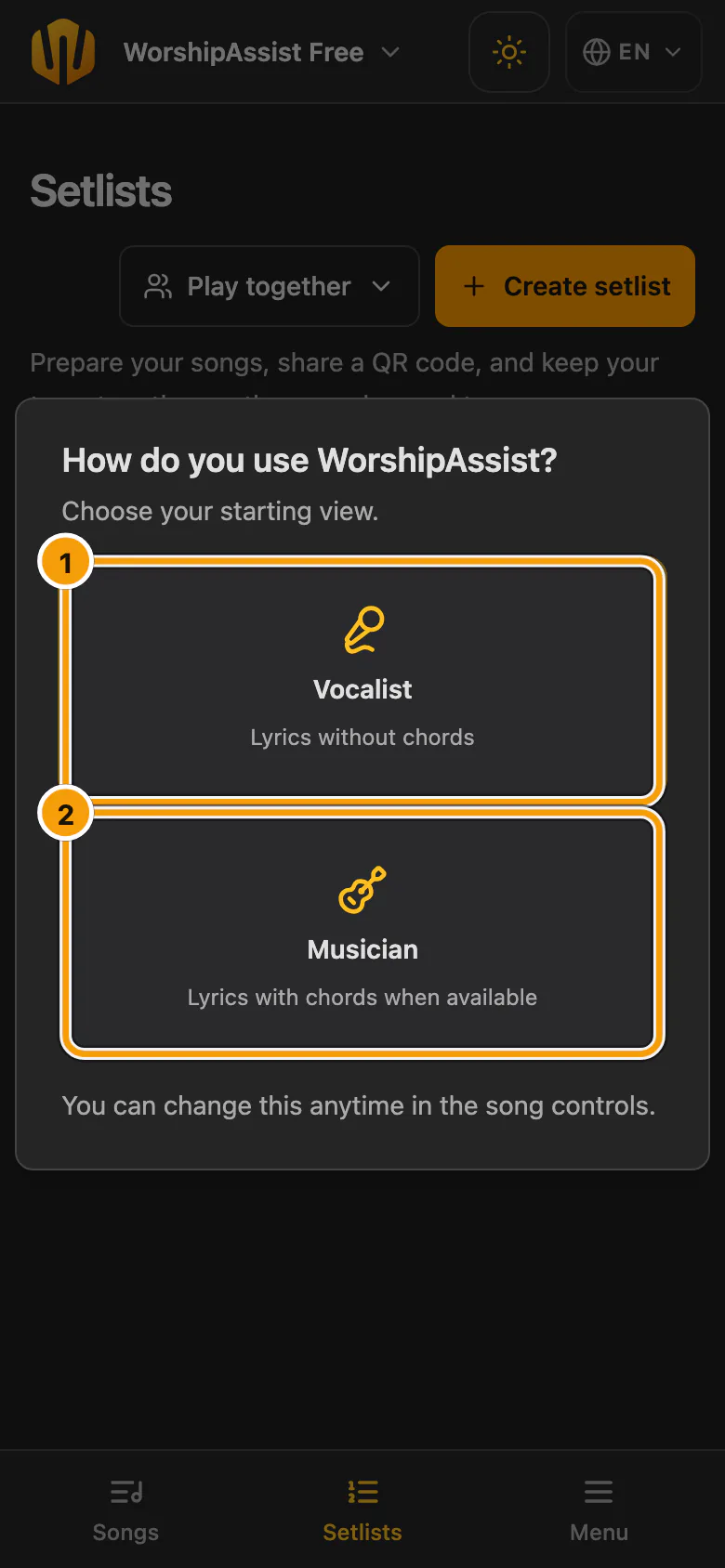
① Vocalist · ② Musician
- Choose Vocalist to read lyrics without chords.
- Choose Musician to read lyrics with chords, when the song has them.
You can change this at any time under Aa in the Live top bar: Lyrics, Both or Chords. If you already had a saved view, WorshipAssist keeps it and does not ask again.
Use WorshipAssist Free, without an account
- In My songs, choose New song. Give it a title, write or paste lyrics and chords, then choose Save song. For an existing .txt or ChordPro file, choose Import a file.
- Tap the song to open it in Live. Adjust the key or text size for yourself, or practise with the pad, drums, tuner or listening tools. Use Setlists to put your songs in order.
If you need to stop writing, choose Back. In versions with draft recovery, open New song again, or edit the same saved song, on the same device and with the same sign-in. Choose Restore draft to continue. Cancel drops your current edits. The saved song changes only when you choose Save song.
Your Free songs and setlists are saved in the browser or app you’re using on this device. Signing in or out leaves them in place. If you later have permission to edit a band’s songs, you can choose to add your songs to its library and keep your own copies.
- In the browser, open WorshipAssist online first so the browser can save the app for offline use. Try the pad sound and any other tools you’ll need while you’re still online. Use the same browser with its site data still available when you go offline.
- In the installed app, if the welcome screen offers Use without an account, you can start adding songs and practising offline on your first launch.
If your version offers Reference under Widgets in Live, it shows links saved for the song. Where in-app playback is available, embeddable YouTube videos play online without a WorshipAssist account. If a video won’t play in WorshipAssist, choose Open in YouTube. Spotify, Apple Music and other links open outside WorshipAssist.
Join your team
To join your band’s shared workspace, go online and sign in with your SundayAssist account. From Free, open WorshipAssist Free at the top and choose Sign in. Select a team you have access to. If your church uses Connect, the same church songs and setlists are available there too, as far as your access allows.
If you haven’t joined a team, you can choose one of these options.
- Join with a link: open an invitation, setlist or Presenter link from your team. This is usually the right choice.
- Find your team: search for your team and ask to join.
- Start a new team: only if your church or band is not on SundayAssist yet.
Use WorshipAssist in your browser to start a new team. In the installed app, you can join an existing team.
A link to a setlist, team invitation, or band session can open in the WorshipAssist app on your phone or tablet. If the link opens in your browser, you can continue to the same setlist, invitation, or session there. For a team invitation or a setlist, sign in with your SundayAssist account if asked.
If a Presenter operator shares a WorshipAssist QR code or its link, open it on your phone or tablet. If you see an app choice, choose Open in WorshipAssist to join with an up-to-date app, or Continue in browser to join the same session there.
Check that the right team is selected before you edit or share music. Your role in the team decides whether you can read, edit or manage it. If a song or action is missing, first check that you are in the right team.
Check your access and plan
- WorshipAssist Free needs no account: your own songs and setlists on this device, with Live, pad, drums, the tuner and listening. WorshipAssist Flex, billed monthly or yearly, adds church songs, band sessions, sharing and sync between devices. It is confirmed online once every 30 days.
- An active WorshipAssist Flex, Connect or Complete subscription covers the workspace's invited musicians. Each musician does not need to buy a separate subscription.
- Connect and Complete include WorshipAssist for the church's music workspace, with its Connect setlists. A band without Connect uses its own WorshipAssist Flex subscription.
- Eligible workspaces can start a 28-day music trial. It ends at the end of its final day in the organisation's time zone (Europe/Amsterdam unless another time zone is set).
- Connect's free Basic plan does not include continued WorshipAssist access after that trial.
See current plans.
Presenter's local WorshipAssist QR connection is a separate way to read the desktop song library. Remote is for the speaker and the room; musicians choose WorshipAssist in the same QR menu. See Presenter and phone connections.
Presenter 2.0.0 and 2.0.1: The WorshipAssist QR works on the venue’s Wi-Fi with paid Presenter or the full Presenter trial.
Next desktop update: To join from the venue’s Wi-Fi, open Mobile control → WorshipAssist in Presenter and scan the QR code. Presenter Free includes this connection. You can join without a SundayAssist account.
Find your way around
| To… | Read |
|---|---|
| Read a song on the music stand, change songs and your own key | Reading songs |
| Make songs easier to read: colours, fonts, sizes and columns | Song appearance |
| Write on a song with a pen or your finger | Marks & notes |
| Follow the band leader's songs, or invite a guest | Play together as a band |
| Take songs with you without internet | Offline practice |
| Send your music to a church's Presenter | Send songs to a Presenter |
| Edit songs and prepare setlists | Songs & setlists |
| Invite musicians and manage the band | Band settings |
Report content or a person
In Settings, open Account and choose Report content or a person. Describe what happened and where you saw it. Your church administrators receive church reports. Choose Send privately to SundayAssist support to contact support directly about a concern, including one about an administrator. The owner of your band handles reports about shared content. You can contact SundayAssist support privately about the owner or any other concern.
To try Presenter without a live service, open I have a QR code on the app’s welcome screen, choose Try Presenter, enter 0000-1111 and open the demo. The sample runs on your device.
In the SundayAssist and WorshipAssist apps you can shake your phone to send us feedback, except while a song chart or Remote control is open.