Included with every Presenter on the venue’s Wi-Fi · Over the internet with paid Presenter or Ultimate
Real interface · Example content
See Remote at work
One phone for the speaker, a phone or tablet for the desk, and every phone in the room. Each joins with a QR code and sees only what its role allows.
1 of 7: Simple Controller
Simple Controller
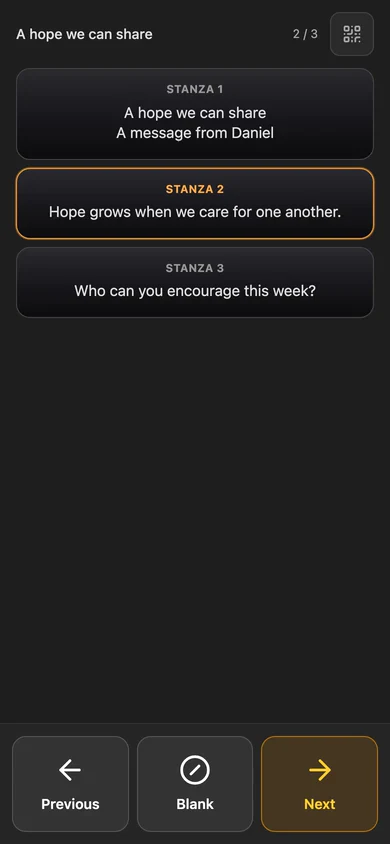
Only their own slidesThe speaker sees and moves through their own presentation, nothing else.
Previous, blank, nextBig buttons in the phone's browser. No app to install.
1
The speaker sees and moves through their own presentation, nothing else.
2
Big buttons in the phone's browser. No app to install.
Full Controller
The whole serviceDeck shows the running order; Sub-items shows the stanzas or pages of what is live.
Jump to any cueThe live song is marked in its section. Tap any cue to show it, or start a whole section.
Every desk controlBack, next, blank and the default slide, with the song's stanzas as a bar you can step through.
1
Deck shows the running order; Sub-items shows the stanzas or pages of what is live.
2
The live song is marked in its section. Tap any cue to show it, or start a whole section.
3
Back, next, blank and the default slide, with the song's stanzas as a bar you can step through.
Tablet
The live stanza, largeOn a tablet, Sub-items shows what is live in full. Enlarge the text here; the screen in the room stays the same.
Every stanza beside itTap a stanza to show it straight away, in any order.
Where you areThe bar follows the stanzas, pages or video time. Drag it to jump, or step with the arrows.
1
On a tablet, Sub-items shows what is live in full. Enlarge the text here; the screen in the room stays the same.
2
Tap a stanza to show it straight away, in any order.
3
The bar follows the stanzas, pages or video time. Drag it to jump, or step with the arrows.
Invite
Pick a role for each phoneFull Remote, Simple Remote, Viewer or WorshipAssist. Presenter creates an invite for that role only.
Scan to joinAnother phone points its camera at the code and opens Remote in that role, right in the browser.
Or send the inviteShare it, send it on WhatsApp, copy the link or share the QR image.
1
Full Remote, Simple Remote, Viewer or WorshipAssist. Presenter creates an invite for that role only.
2
Another phone points its camera at the code and opens Remote in that role, right in the browser.
3
Share it, send it on WhatsApp, copy the link or share the QR image.
Viewer
The live words on every phoneLyrics and Bible text follow the screen, sized to fit each phone. Slides and pictures come through too.
Your own text sizeTap the screen for the controls, then make the text larger or smaller. Only this phone changes.
Pass it onShow a QR code so the person next to you can follow along too.
1
Lyrics and Bible text follow the screen, sized to fit each phone. Slides and pictures come through too.
2
Tap the screen for the controls, then make the text larger or smaller. Only this phone changes.
3
Show a QR code so the person next to you can follow along too.
Quiz
Questions on every phonePolls and quizzes appear on each guest's phone, with the picture that goes with the question.
Answer with one tapFour big, colored answers. In a quiz, guests can add a name for the scoreboard.
1
Polls and quizzes appear on each guest's phone, with the picture that goes with the question.
2
Four big, colored answers. In a quiz, guests can add a name for the scoreboard.
Scores
Top scores on every phoneWhen the scoreboard comes up, every guest sees the five best scores, under the names they chose.
A point per right answerPresenter adds a point for every right answer when the answer is revealed.
1
When the scoreboard comes up, every guest sees the five best scores, under the names they chose.
2
Presenter adds a point for every right answer when the answer is revealed.
The right view for each person.
Simple Controller
Only the current item: move through its slides, song stanzas or Bible pages, and blank or show the screen. The guest cannot switch cues or start or stop the service.
Full Controller
See the complete running order, choose cues and navigate their parts. Start, stop and blank the presentation. Presenter keeps ownership of the deck and library; the phone cannot edit them.
Viewer
Follow songs, Scripture, images and PDF or PowerPoint slides on your phone, and join polls and quizzes. Video playback is not streamed to Viewer.
Musicians: WorshipAssist from the same QR menu
Remote is for the speaker and the room. Musicians choose WorshipAssist in the same QR menu for their own lyrics and chords.
Open phone controls in Presenter, choose Simple for the current item or Full for the running order, and share the QR. Your guest scans it and opens the controls in their browser.
No app or account for the invited guest
Local: same venue Wi-Fi, no internet needed
Phones over the internet: with paid Presenter or Ultimate
Follow the service on your own phone: songs, Scripture, images and PDF or PowerPoint presentations. Join polls and quizzes from your seat. Video and YouTube playback are not streamed to Viewer.
Presentation slides and images, not just song lyrics
Polls, quizzes, answer reveals and scoreboards
Follow without controlling Presenter; website cues open as links
Remote · Viewer · Quiz
On its own or together
Control on Wi-Fi or over the internet.
Included with Presenter
Controller works on the same Wi-Fi with every Presenter. Paid Presenter and its full 28-day trial also include Viewer and WorshipAssist from the same QR menu.
With paid Presenter or Ultimate
Phones on mobile data or another network control Presenter through SundayAssist Cloud. Keep Presenter running, online and signed in, with Anywhere selected.
No. Scan the QR code from Presenter and Remote opens in the phone or tablet browser. Presenter must be running and stays in control of the session.
Can a guest upload their own slides with it?
Remote controls slides already loaded in Presenter. A guest can upload slides beforehand through an invited Connect event with Collaboration and Ultimate, or send you the file to add yourself.
Can everyone control the projector?
Only the roles you choose. A controller operates the presentation; a viewer only follows it. Musicians open WorshipAssist from the same QR menu for their own lyrics and chord view.
Does the phone have to use the venue’s Wi-Fi?
No. On the venue’s Wi-Fi, Remote works with every Presenter, without internet. Phones on mobile data or another network connect through SundayAssist Cloud, with paid Presenter or Ultimate; the pricing page lists exactly which licences include it. Keep Presenter running, online and signed in, with Anywhere selected. Both devices need internet.
Your next guest already has the clicker.
Set up Presenter on the presentation computer. Share the Simple Controller when the speaker’s slides are ready.