Skip to content

Connect · Planning and community for your church

Where your church comes together.

Start with a free church calendar. Paid Connect helps you plan services, invite volunteers and hand the setlist to the band.

Try paid Connect for 28 days without a card, then stay on free Basic or subscribe.

SundayAssist
Real interface · Example content

See Connect at work

A planner's week, screen by screen: Home, the agenda, the service plan, songs and the roster, then the phone every volunteer replies from.

1 of 7: Home

Home

  1. Start with the next eventHome opens on the next event, with the events after it listed below.
  2. News for the whole churchPost an announcement for everyone or for chosen groups. Members read it in Connect, and you can email it too.
  3. Birthdays coming upBirthdays in the next 30 days, from people who chose to share them.
  1. Home opens on the next event, with the events after it listed below.

  2. Post an announcement for everyone or for chosen groups. Members read it in Connect, and you can email it too.

  3. Birthdays in the next 30 days, from people who chose to share them.

Agenda

  1. Every service and eventServices and church events in one calendar, by month or by week.
  2. Plan an eventStart a new event, from a template if you have one, or open the list of all events.
  3. Absences and Google CalendarShow who is away on each day, or import events you choose from a Google calendar.
  1. Services and church events in one calendar, by month or by week.

  2. Start a new event, from a template if you have one, or open the list of all events.

  3. Show who is away on each day, or import events you choose from a Google calendar.

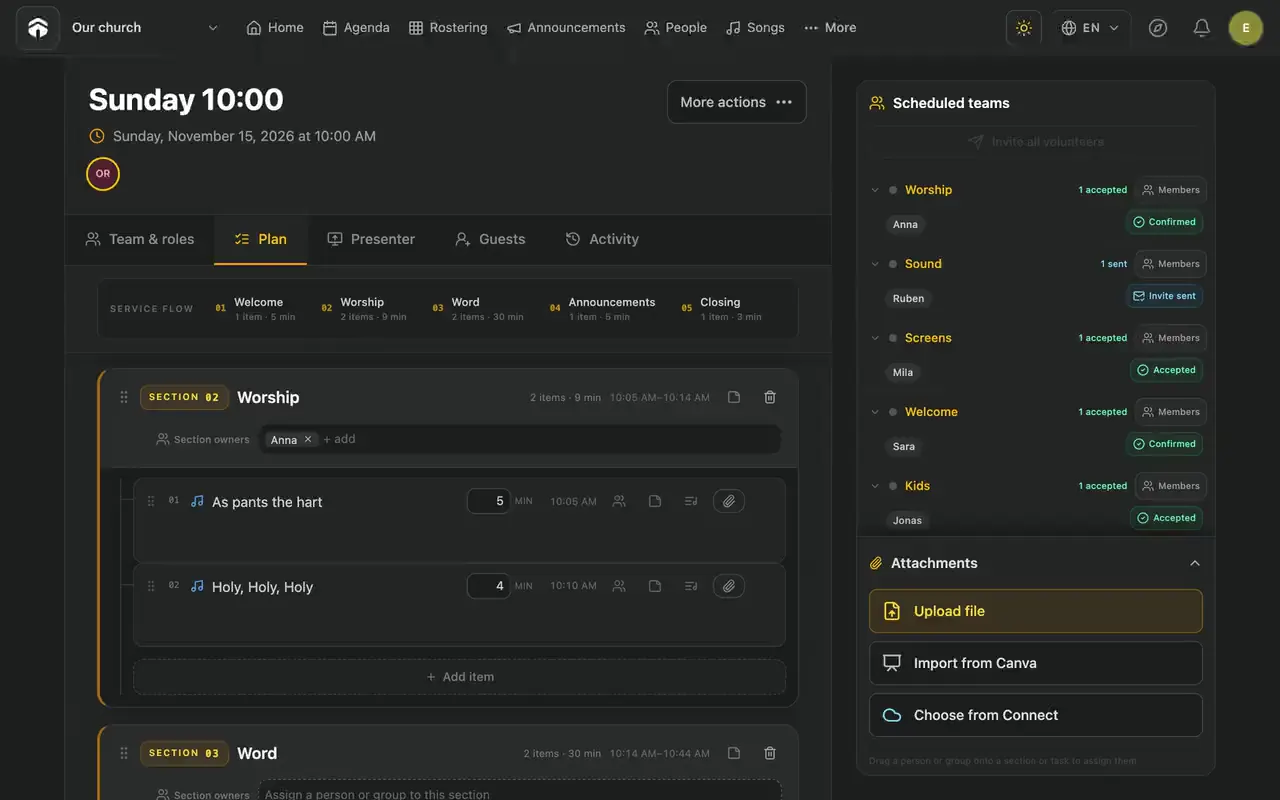
Service plan

  1. The service at a glanceEvery section in order, with its items and minutes. Click one to jump to it.
  2. Who leads whatGive a whole section, or a single item, to a person or a group.
  3. Songs from your libraryType a title to add a song. Each item's length sets the start times that follow.
  4. The team for this SundayEach scheduled team with its people and their replies.
  1. Every section in order, with its items and minutes. Click one to jump to it.

  2. Give a whole section, or a single item, to a person or a group.

  3. Type a title to add a song. Each item's length sets the start times that follow.

  4. Each scheduled team with its people and their replies.

Songs

  1. Your church's song librarySearch your songs, or show only the ones with chords.
  2. Lyrics and chords as textType chords in brackets, or pick the key and add its six common chords from the bar.
  3. Check every stanzaThe song structure shows each stanza with its chords above the lyrics.
  4. Setlists for the bandBuild setlists from these songs; musicians open them in WorshipAssist. Connect includes WorshipAssist.
  1. Search your songs, or show only the ones with chords.

  2. Type chords in brackets, or pick the key and add its six common chords from the bar.

  3. The song structure shows each stanza with its chords above the lyrics.

  4. Build setlists from these songs; musicians open them in WorshipAssist. Connect includes WorshipAssist.

Plan roster

  1. Ask for availabilityChoose the period and teams; everyone gets a link by email. After a few days, team leads get a progress email.
  2. Let Connect suggest a rosterSuggestions fill open places from each team, skip people who are away and share the turns fairly.
  3. Send the invitationsEveryone gets an email to accept or decline. You can also send each team its full roster.
  1. Choose the period and teams; everyone gets a link by email. After a few days, team leads get a progress email.

  2. Suggestions fill open places from each team, skip people who are away and share the turns fairly.

  3. Everyone gets an email to accept or decline. You can also send each team its full roster.

Roster

  1. Every team, every SundaySee who serves where at a glance, weeks ahead.
  2. Replies at a glanceA check means confirmed, a clock means waiting for a reply, an envelope means not invited yet.
  3. Suggestions in amberSuggested names stand apart from the roster, so you can check them first.
  4. Apply or clearApply all suggestions at once, or clear the preview and plan by hand.
  1. See who serves where at a glance, weeks ahead.

  2. A check means confirmed, a clock means waiting for a reply, an envelope means not invited yet.

  3. Suggested names stand apart from the roster, so you can check them first.

  4. Apply all suggestions at once, or clear the preview and plan by hand.

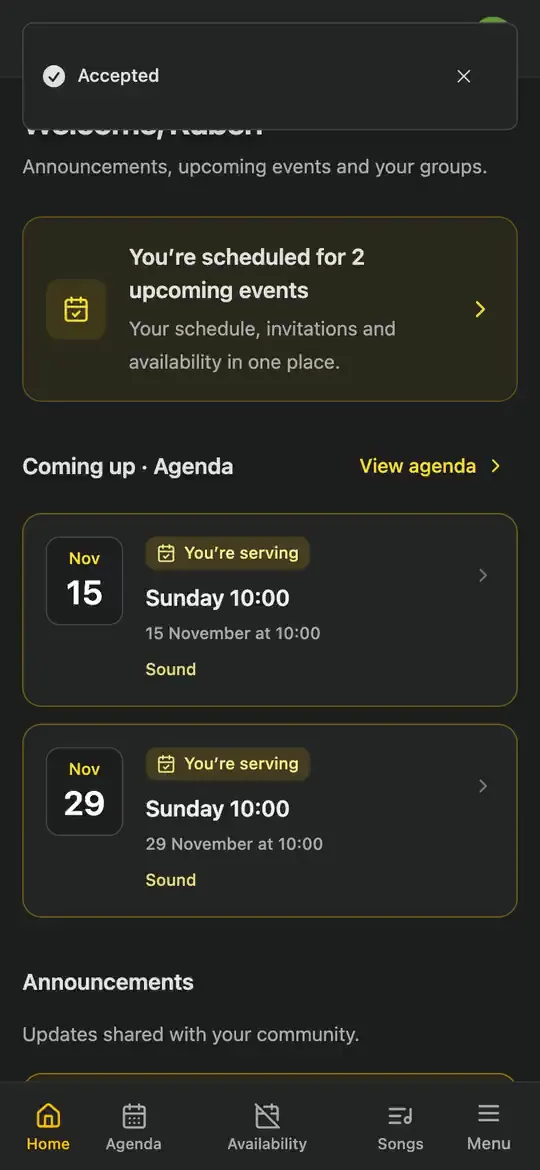
Volunteer

  1. Reply in one tapAccept or decline from a personal link. No password needed.
  2. Share when you can'tVolunteers save the dates they're away, and planners see it straight away.
  3. Every confirmed dateEvents you've accepted stay listed, so you always know when you serve.
  1. Accept or decline from a personal link. No password needed.

  2. Volunteers save the dates they're away, and planners see it straight away.

  3. Events you've accepted stay listed, so you always know when you serve.

One place for everyone.

  • For the whole church

    Announcements, the agenda and groups on everyone’s Connect home page.

  • Plan together

    Rotas, events and replies in one place, always up to date.

  • No password

    A personal link by email opens invitations, availability and songs.

  • Guests for one event

    Invite a speaker to just one event. With Ultimate, they add their own slides.

For everyone

A home page for your whole church.

When members open Connect, they see the church’s news, the agenda and their own groups. Whoever serves finds their invitations there too.

  • Announcements for everyone or for one group
  • A directory where everyone chooses what they share
  • Unlimited users, one price per church
Connect · Community portal

Volunteers

A personal link instead of a password.

Each volunteer gets a personal link by email. It opens their invitations, their availability and the songs for their event. No account to create.

  • Accept or decline under My serving
  • Away dates in a few taps
  • Songs with lyrics and chords to read

Works in a browser on your phone, tablet or computer.

Connect · Volunteer portal

Collaboration

Your guest speaker, right inside the plan.

Invite a speaker to one event. With Collaboration on, invitees can edit the plan; with Ultimate, they also add their own files. Their slides come along when you open that event in Presenter.

  • Guests have access only to their invited event
  • Collaboration per event, off by default
  • PowerPoint, PDF, video, audio and images

Setlists

Setlists the band can practise with.

Save setlists with a key for every song, share them with your teams and open them in WorshipAssist to practise or play together, without Presenter running. WorshipAssist is included with Connect.

  • A key saved for every song in the setlist
  • Shared with groups or teams
  • Included with Connect: practise or play together in WorshipAssist
Explore WorshipAssist
WorshipAssist · Setlist

From plan to Presenter

Plan it in Connect. Open it in Presenter.

Presenter turns the Connect event into a deck with its sections, songs and notes. Link a prepared setlist to a plan item to include its song order and saved keys. Review the deck before presenting. With Ultimate, the files come along too.

  • Sections, songs and notes come across
  • Works with any Presenter licence
  • Plan changed? Create a fresh deck and review it
  • Canva-approved integration: attach PDF or MP4 designs with Ultimate
Explore Presenter

On its own or together

Plan and play with Connect. Present when you’re ready.

  1. On its own

    Rotas, events, news and groups for the whole church, with unlimited users. WorshipAssist is included: the band plays the setlists you plan.

  2. With Presenter

    Open an event as a deck and bring songs from Connect into Presenter, with any Presenter licence.

  3. With Ultimate

    Ultimate brings Presenter Premium, Connect and WorshipAssist together for the whole church. Events open as decks with their files, and the band plays the church’s setlists. Online backups, 50 GB of shared cloud storage and linked rooms are included.

Compare plans

Collaborate with privacy in mind.

  • Collaboration per event

    Invitees have read-only access by default. An admin can enable Collaboration so invited volunteers and guests can help edit that service.

    More about collaboration
  • Support for GDPR compliance

    Clear permissions, privacy information in invitations and account-free unsubscribe links help you handle personal data with care.

    Read our privacy policy

Good to know.

Straight answers before you start. Need a hand? We are happy to help.

Contact us
Do we need Presenter to use Connect?

No. Connect works on its own in any browser. When you want to present, any Presenter licence opens your Connect event as a new deck.

Can a guest speaker help without joining our church?

Yes. Invite them by name and email as a guest of one event. They see only that event. With Collaboration on, they can edit the plan; with Ultimate, they can also upload their own slides.

Does every volunteer need a paid licence?

No. Connect includes unlimited users. Invitees can read their event and reply. Turn on Collaboration to let everyone invited to that event help edit it.

Can we bring our people from another system?

Yes. Import a reviewed CSV of people from Planning Center, ChurchTools, ChurchSuite, WorshipTools or a spreadsheet. Nobody is invited until you choose to send invitations.

How does Connect handle privacy?

Members choose whether to appear in the directory and share contact details. Before sending organisation emails, your church records its privacy basis and contact. Recipients can unsubscribe from that church’s emails.

Plan next Sunday together in Connect.

Try Connect free for 28 days, without a payment card. Invite a few volunteers and plan one real event.

Start Connect