Offline practice
Download a setlist or your church’s song library before you go offline. In Downloads, check what’s saved on this device and when it expires.
In WorshipAssist Free, see Songs & setlists for using your own setlists on this device. The downloads below are for your band’s shared library.
Save music automatically
In Settings → Offline, look for the option your app version offers. Automatic downloads need music access, internet and enough space on the device.
- Save upcoming setlists automatically saves the open setlist, setlists for services in the next 14 days and setlists changed in the last 14 days, up to 10 setlists.
- Keep all songs and setlists on this device can save the church song library and its active setlists.
Turn off the option to stop automatic downloads. You can still download something by hand.
Without a connection
A small cloud with a line through it appears in the top bar while the device is offline. Tap it to see what it means. WorshipAssist shows no error messages for this.
- Downloaded setlists and songs, Live, your own key, pad, drums and the tuner keep working.
- Your marks and notes and your song settings are saved on the device and go to your account when the connection returns.
- Other changes to setlists and songs, playing together in a band session, sharing and viewing history need a connection.
- If a song or setlist is missing from the device, reconnect to open it.
Change the order in Live while offline. In versions with offline setlist editing, download the setlist before you go offline. You need permission to edit your band’s setlist. Open it in Live and open the setlist sidebar or drawer. Hold a song and move it, or focus its row and press Alt+↑ or Alt+↓. This works on the songs in the ordinary download. The order edit stores only song positions. Licensed catalogue entries keep their saved positions and follow their own access rules. If the setlist shows licensed catalogue entries, reconnect before moving songs in that list.
WorshipAssist saves the order on this device. If you restart while still offline, stay signed in to the same account and open the setlist in Downloads to see the order. The app tries to share it when you reconnect in the same band. If the shared setlist changed while you were away, it keeps the shared order. Choose Discard offline order, then open the latest setlist and move the songs again if it is still available. Signing out or losing editing access discards the pending order.
Licensed Opwekking and NBV21 wording is not saved offline; those songs need a connection.
Download by hand
You can still save one setlist or the whole library yourself, for example right before you leave. In the WorshipAssist app or on play.sundayassist.com, choose Download for offline use on a setlist (on a phone, under … next to the setlist name), or open Downloads. Tap Download all church songs and choose the item with the same name if a menu opens. If the library is already saved on this device, open Church songs available offline and choose Refresh all church songs.
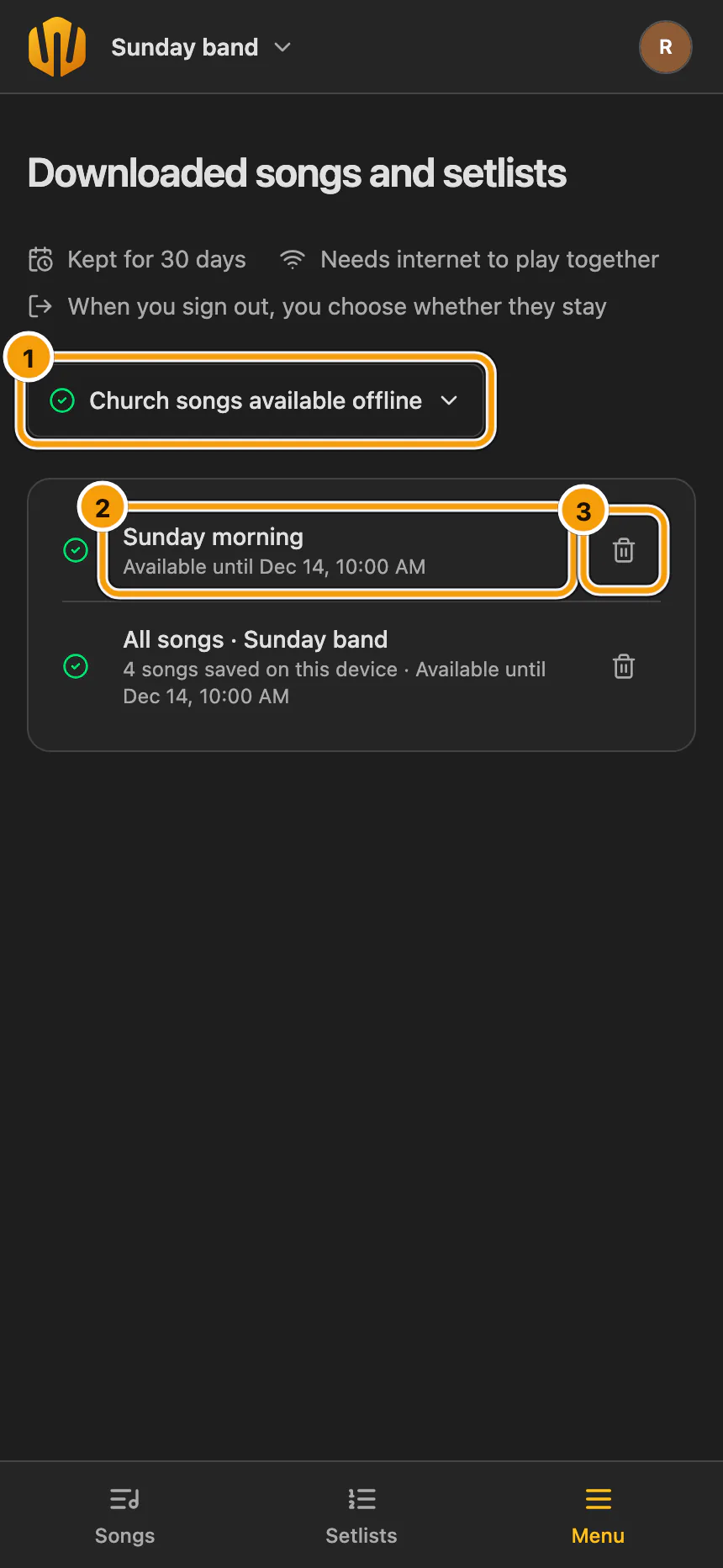
① Church songs available offline · ② A downloaded setlist · ③ Remove download
To remove the setlist copy from this device, tap Remove download on its row. When Remove download? appears, tap again to confirm.
How long copies last
The Downloads page shows when each church copy expires. These are personal practice copies on this device.
- Copies are readable for up to 30 days after the last successful online music access check. They can expire sooner if your access ends. To renew them, open WorshipAssist online while you still have music access.
- Your own songs in WorshipAssist Free stay on this device and work without an account.
When you sign out
If your version shows Sign out of WorshipAssist?, it tells you how many downloaded songs are on this device and offers these choices.
- Keep songs on this device and sign out leaves them readable here, signed out, until their offline period ends. Open them again with the songs link on the sign-in screen. Pad, drums and the tuner still work; signing in brings back listening and adding songs.
- Remove offline songs and sign out removes them from this device straight away.
- Cancel keeps you signed in.
When someone else signs in on this device, WorshipAssist removes the kept church copies.
When the internet drops
If your Wi-Fi loses internet, you can still open downloads that are within their offline period. WorshipAssist checks your access again when it reconnects.