Install and set up Presenter
Install Presenter on Mac, Windows or Linux and get it ready for your services: your Connect account, the AI Assistant and Bibles, tips, Presenter Free and offline use. For the short start, see Start here.
Presenter builds and runs the visual order for a service. The desktop app controls the output; Remote puts selected controls or content in a phone browser; Connect can supply songs and planned services when you sign in.
Install on Mac
On the download page, choose Apple Silicon for a Mac with an M-series chip and Intel for an older Mac. If you are unsure, open the Apple menu → About This Mac and check Chip or Processor. The Intel version also opens on Apple Silicon, but the AI Assistant is much slower there.
Open the downloaded disk image and drag Presenter to Applications. The first time you open it, macOS asks whether to open an app downloaded from the internet; choose Open. Presenter 1.2.6: macOS may ask for microphone access the first time Presenter starts. Presenter 2.0 and later: macOS asks for microphone access only when you first test or use the AI Assistant.
Install on Windows
Microsoft Store is the simplest choice: it installs the right version for x64 or ARM64 PCs and keeps Presenter up to date. The direct installer on the download page needs administrator rights. If Microsoft Edge says the file isn't commonly downloaded, choose Keep. If Windows shows Windows protected your PC, choose More info. If it says Unknown publisher, don't run the file and contact us. Otherwise, choose Run anyway.
The first time Presenter starts, Windows may ask whether it can communicate on networks. Allow Private networks so phones on the same Wi-Fi can connect. If you chose Cancel, allow Presenter in Windows Security → Firewall & network protection → Allow an app through firewall. If the microphone test hears nothing, open Settings → Privacy & security → Microphone and allow desktop apps to use the microphone.
Install on Linux
For Ubuntu or Debian, follow the APT instructions on the download page. The official repository is packages.sundayassist.com; after setup, your package manager can install Presenter and keep it up to date. Existing APT installations continue to work with the same trusted signing key. You do not need to remove and reinstall Presenter.
Presenter 1.2.6: The AI Assistant on Linux uses CPU compatibility with one English-only model; x64 computers need a processor with AVX2.
Presenter 2.0 and later: Linux can use experimental Vulkan acceleration when Presenter detects a supported physical GPU, with CPU compatibility when no usable driver is available. Debian packages and the portable runtime helper install the Vulkan loader and open-source Mesa drivers for AMD and Intel graphics; NVIDIA graphics need the proprietary NVIDIA driver. CPU compatibility supports English, Dutch, French, Spanish, Portuguese and German, one selected speech language and one model at a time. Choose it in AI Assistant → Speech language or during setup and download the matching model. The portable x64 CPU backend supports older processors without AVX2. Multilingual CPU recognition can be slower; run the microphone and slide-command tests and rehearse with your actual songs and outputs. GPU performance depends on your hardware and driver.
Licensed Bibles need libsecret-tools and an unlocked desktop Secret Service keyring. Presenter 2.0 and later: Debian packages recommend gnome-keyring; the portable runtime helper installs it. If the keyring is missing or locked, install GNOME Keyring or use a compatible provider, sign out and back in, unlock your keyring, and retry the Bible download. Presenter never stores these content keys as unprotected files.
Connect account (optional)
After accepting the content licence on a new installation, choose Log in if you already have a Connect account, or Create account if you are new. Both open the next step in the same window with the email field ready to type in. Use Google or enter your email address and verify the code we send; you do not need a password. The back arrow returns to the account choices. Apple is also available in the Mac App Store edition.
You can choose Skip for now and use Presenter without an account. Return through Connections → Connect whenever you want. After verifying a new account, name your church or workspace if you do not have one yet; an existing account connects to its organisation or lets you choose between organisations.
Prepare the AI Assistant and Bibles
Bible suggestions search the Bibles installed on this computer, so install one for each language read aloud in your services. Presenter 1.2.6: Install them in Settings → Bibles and download the speech and Bible recognition models in AI Assistant → Required downloads. Presenter 2.0 and later: When you create your first collection, or in AI Assistant setup → Models, tick every reading language, for example English and Nederlands, and download the editions offered. Manage imported and licensed translations in Settings → Bibles.
Presenter 2.0 and later: In the same Models step, download the speech models and Recognise Bible passages, plus Recognise Bible quotes more precisely for quotations without a spoken reference. Let the installed Bibles finish preparing, then rehearse with the languages you will use. See AI Assistant for details.
Tips and guided tours
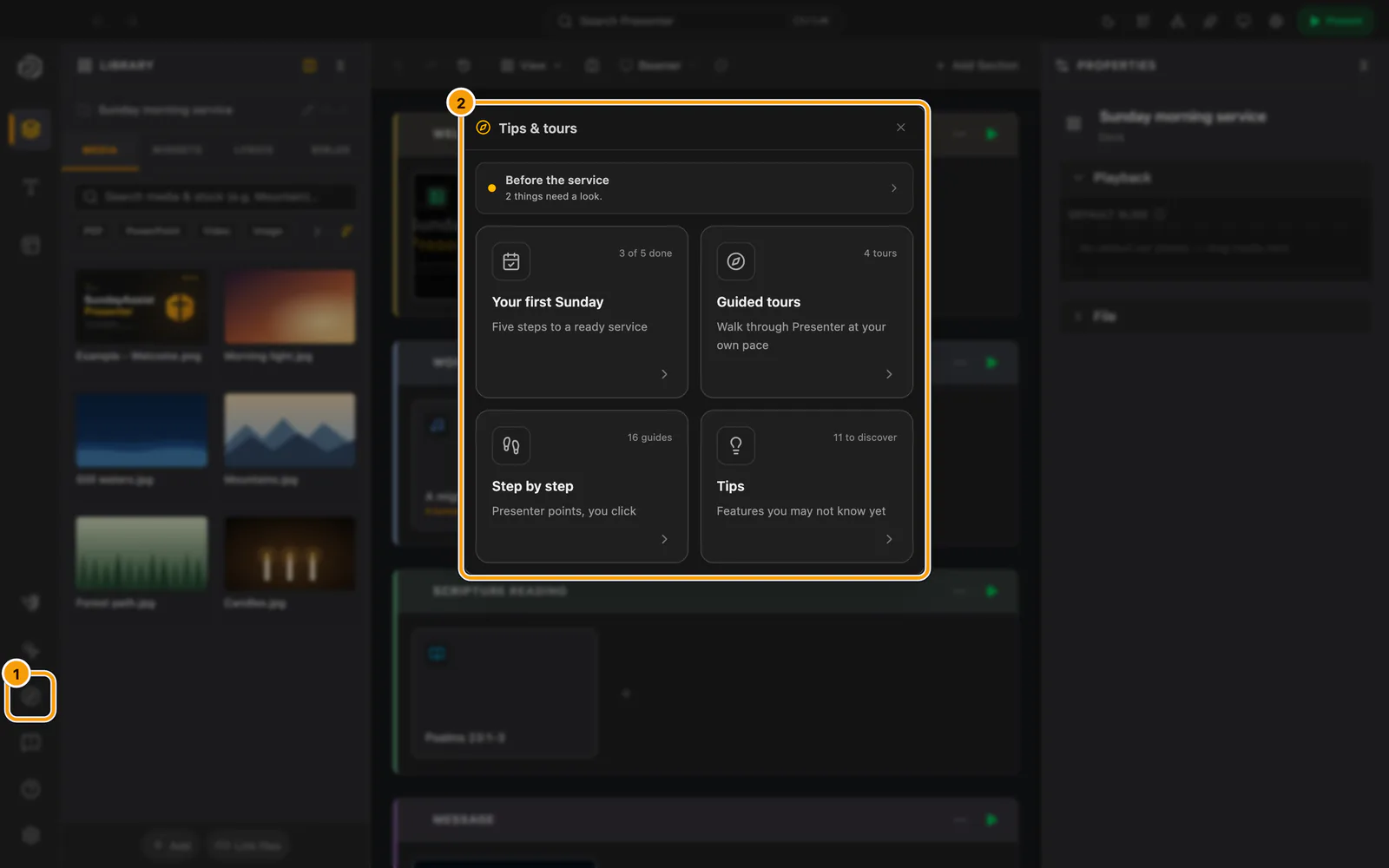
① Compass · ② Choose a category
With a deck open, use the compass in the sidebar to choose a goal. Prepare a service is the recommended starting point: build a running order you can rehearse, rather than just read about the controls.
Presenter 2.0 and later: The compass opens Tips & tours. Presenter 2.1 and later: It opens small and shows a few categories first; choose one to see what it holds, and press Esc or the back arrow to return. Before the service at the top says at a glance whether everything Sunday needs is in place. Open it to see each check: a projector or TV is chosen, the deck has cues, every media file is found, the AI Assistant hears the microphone and a phone is paired. Show me helps with anything that needs attention, and Check again checks once more. Your first Sunday lists five steps that prepare a whole service (a song, a Bible passage, a countdown, the order and practising) and ticks each one when it is done. Guided tours holds the four tours below. In Step by step, Show me leads you through a whole task one control at a time, such as giving a widget a background or adding a Bible passage; you make every change yourself. Tips lists short tips, each with Show me, which points at the real control; Used marks a feature you have already tried, and the Show tips switch is at the top. Practise the live keys, also in Tips, puts your own live keys and clicker on a practice screen built from the open deck: next and previous slide, blank, and hide words. Nothing reaches your screens, phones or stream. You also find it in Settings → Keyboard Shortcuts, and as Practise first the first time you press Present. What is this? has its own button in the sidebar, above the compass. Press it, then point at any button, field, tab or badge to read what it does, with Learn more when Help says more. Click an empty part of a panel to read what the panel is for. A menu button opens its menu, so you can point at its items too. Nothing changes while you point; press Esc or the button again to stop. Esc closes an open menu first.
- Prepare a service: try adding a countdown, song, Bible passage and image, video or PDF. Arrange them in sections for the whole service, review cue settings and styling, customise panel widths, choose display profiles and screens, then present when you are ready. Finish with a rehearsal and a plan for reusing the deck.
- Get to know Presenter: see how the Library, deck and Properties work together, adjust the workspace, discover local and online sources, and find Connect auto-decks, shared media and the phone QR roles.
- Practise presenting: distinguish your selection from the live output, check slides and display routing, and practise the live controls, default slide and phone controls.
- Explore the AI Assistant: find setup and microphone checks, then understand song and document suggestions, following and manual control before choosing whether to enable them.
Exercises are optional and recognise additions only after they are saved. You can skip an exercise or close the tour; additions you made stay in your deck. The tour never creates cues, starts presenting, downloads models or enables AI for you.
During an exercise, Escape first clears a Library search; press it again to close the tour. Opening another deck keeps the current exercise open and checks only new additions to that deck.
If you chose Add example content when creating the collection, the welcome image, video and PDF, Amazing Grace and the saved KJV Psalm 23:1–3 passage are available offline. Use these or your own content to practise.
The chooser opens when you request it through the compass, a setup action or an invitation. A dismissible invitation may appear when your collection contains just one empty deck; empty sections also count as empty. Collections with multiple decks do not show this invitation. Presenter 2.0 and later: The invitation appears only in your first session with a deck on this computer. Startup never opens the chooser automatically, and the compass remains available whenever a deck is open.
Presenter 2.0 and later: From your second session, Presenter may show one short tip per session about a feature you have not used yet, after a few quiet seconds with a deck open. It never appears while you are presenting or while a dialog or menu is open. Choose Show me to see the control, Next tip for another, or Don't show tips under … to turn tips off. Show tips in Tips & tours or under Settings → Rendering & performance turns them back on. Which features you have used is kept on this computer only. After you click Search, Settings, a workspace in the sidebar, Undo or Redo with the mouse three times, a Shortcut tip shows its keys once; Show tips turns it off as well.
Presenter 1.2.6 and later: The service-first recommendation, expanded exercises and invitation behavior described above apply from this version.
Terms used in Presenter
| Term | Meaning |
|---|---|
| Collection | The folder that holds your decks and their reusable songs, Bible passages, and copied media. |
| Deck | One service order saved as a local deck file. |
| Section | A named group in the service, such as Pre-service, Worship, or Message. |
| Cue | One item that can be shown or played: lyrics, Bible text, a PDF, media, or a widget. |
| Display profile | The look and routing assigned to an output, for example the main projector or a confidence screen. |
| Live View | The operator preview of the output currently being presented. |
Presenter Free
Presenter 2.0 and later: every new installation starts with a 28-day trial of the full Presenter. When the trial ends, a subscription lapses or a one-off purchase no longer covers a newer version, Presenter continues as Presenter Free instead of stopping. Presenter Free is free forever. It gives you:
- songs, Bible passages, text, images and video
- phone control on your own Wi-Fi
- local backups
Presenter 2.0 and later: If your church pays for Connect or WorshipAssist, songs and setlists keep syncing.
Presenter 2.0.0 and 2.0.1: Presenter Free could use one output screen. More than one screen, local NDI output, PDF and PowerPoint import and playback, and direct Canva import were available in paid Presenter and during the trial.
Next desktop update: Enable every attached audience and stage screen you need in Displays. Presenter Free has no edition limit on how many can be on at once, and supported installations include local NDI output. These outputs work after the trial without a SundayAssist account. See Presenting and NDI.
Next desktop update: Presenter Free imports, previews and presents local PDF and PowerPoint files on your screens or over local NDI, including in saved decks and after the trial. You do not need a SundayAssist account. You can also import a PDF or PowerPoint file you exported from Canva.
Next desktop update: Presenter Free also includes Slide Builder. Create, edit and save slides in your deck, then present them offline on your connected screens. Import other local presentation formats where the platform and converter support them.
Next desktop update: Direct Canva import is included in Presenter Free. It uses an internet connection, your SundayAssist sign-in and your consent in Canva. The downloaded copy works offline.
Presenter 2.0.0 and 2.0.1: paid widgets, AI Auto-follow and voice advance (all AI Assistant features in Presenter 2.0), MIDI and MQTT integrations, the church logo and other overlays, stock media, the Viewer, WorshipAssist QR, the three phone-role QR cues and the online services belong to paid Presenter. Viewer and WorshipAssist phone pairing are also available during the full trial.
They stay visible, and choosing one explains what it needs. In a deck, cues that need paid Presenter appear striped, like hidden cues, so you can see what will not be shown. They have no play button, and double-clicking one shows what it needs. A paid cue you also hid yourself shows a crossed-out eye beside its lock. Next, Previous, the phone Remote and automatic advance pass over them, just like hidden cues, including a section with only paid cues. Choosing one directly, with Go live, a tap on the phone or a shortcut, keeps the current slide on screen, and Presenter shows on the computer what it needs. In the phone Remote, paid cues are dimmed and show a lock; tapping one also explains on the phone what it needs. A presentation that started with paid Presenter keeps every cue until you stop it. See options or Settings → Updates & license → Upgrade Presenter compares the paid options inside Presenter and opens the payment page for your choice, including in the Microsoft Store edition. When you start a Presenter or Complete purchase inside Presenter, confirm the payment account in your browser before paying. After payment is confirmed, the page tries to open the same Presenter and activate it automatically; Open Presenter tries again. If the app cannot open, you use another computer, or the return has expired, open Settings → Updates & license → Already have a license? → Sign in & activate and use the account used to pay.
Next desktop update: On the same Wi-Fi, all three phone roles and their QR cues work in Presenter Free. Choose Local under Connections → Integrations for your MQTT equipment on that network.
Presenter 2.1 for desktop includes local MIDI input, learned shortcuts and MIDI output rules in Presenter Free on supported devices.
Presenter 2.1 for desktop includes local church logos, slide styling and live messages on your own displays in Presenter Free.
Presenter 2.0 and later: While you use Presenter Free, a small amber Free badge sits at the top right of the window. Choose it to open the paid options directly. Press Esc to close the window and return focus to the badge.
Presenter 2.0 and later: Signing in keeps this computer’s existing active licence seat or fills a free one; it never replaces another computer automatically. If every seat is in use, choose Sign in & activate for a first activation, or Make this computer active if Presenter says this computer’s licence seat is inactive. Review the named computer and its activation and last online licence-check dates, then explicitly confirm that exact replacement. The last licence check is not the last time the computer was used. You can give this computer an optional name of your choice; Presenter never collects its system hostname. Replacing a computer stops its online licence access, but previously issued offline licences keep their existing validity, including perpetual Own rights for covered versions. If the replacement details change, review and confirm them again. If the replacement safeguard asks you to contact support, use Contact support; existing active computers keep working.
What works offline
Decks, local media, saved songs, saved Bible passages, and downloaded offline Bibles remain usable without internet access; protected Bibles such as NBV21 work offline while their access permission remains valid. Connect, Anywhere phone connections, YouTube, Spotify, stock-media search, and cloud Bible sources need a network connection.
In Presenter Free, playing visible YouTube cues without a SundayAssist account requires a compatible Presenter 2.1 or later build, an internet connection and an available SundayAssist YouTube playback service. Older versions can require sign-in or a paid edition. See Library & sources for playback and recovery.
The core Presenter app, same-Wi-Fi phone Remote, local AI Assistant and Connect event auto-decks do not require Complete. On Connect’s free plan, song sync can add up to 3 songs to Connect; existing cloud songs can still be updated. Complete removes that cap. Presenter 2.0 and later: a Connect or WorshipAssist Flex subscription also removes it for Presenter song sync. Paid Presenter includes phone control over the internet through SundayAssist Cloud: Presenter Flex, monthly or yearly, and Presenter Own during its update year. Complete includes it too. Presenter Free and the 28-day trial use the same Wi-Fi. Linked rooms (Presenter Link) and cloud integrations remain Complete features. The Connections panel shows the allowance for the signed-in organisation.
Presenter 2.0 and later: Your own qualifying Presenter licence includes 1 GB of personal online backup without media. Complete includes backups with media in its shared 50 GB.
When Online settings backup is available, Presenter Free can save portable settings online with 1 GB per account. The option needs a compatible Presenter build and SundayAssist service. Set up settings backup if you choose to sign in.
Prepare downloads and imports while online, including the models and languages needed by the local AI Assistant. Rehearse with the actual computer disconnected from the internet before relying on an offline service. Check Settings → Updates & license beforehand so the computer's trial or license is ready for use.
Useful entry points
⌘K/Ctrl+K: search decks, songs, Bible passages, widgets, and settings.⌘1/Ctrl+1: Deck Builder.⌘2/Ctrl+2: Lyrics editor.⌘,/Ctrl+,: Settings.- Mobile control in the title bar: Viewer, Controller, and WorshipAssist QR codes.
- Connections in the title bar: Connect, phone connection mode, and MIDI.
Besides public-domain Bible translations, Presenter offers protected catalogues that SundayAssist licenses, such as the NBV21 Bible, when your account has access to them; see Library & sources. For songs, Bibles and other content you import or add yourself, your organisation is responsible for permission to store, project and share it.